Cole Systems Inc.

How to Access a Shared Mailbox in

Open the Outlook (new) application on your computer

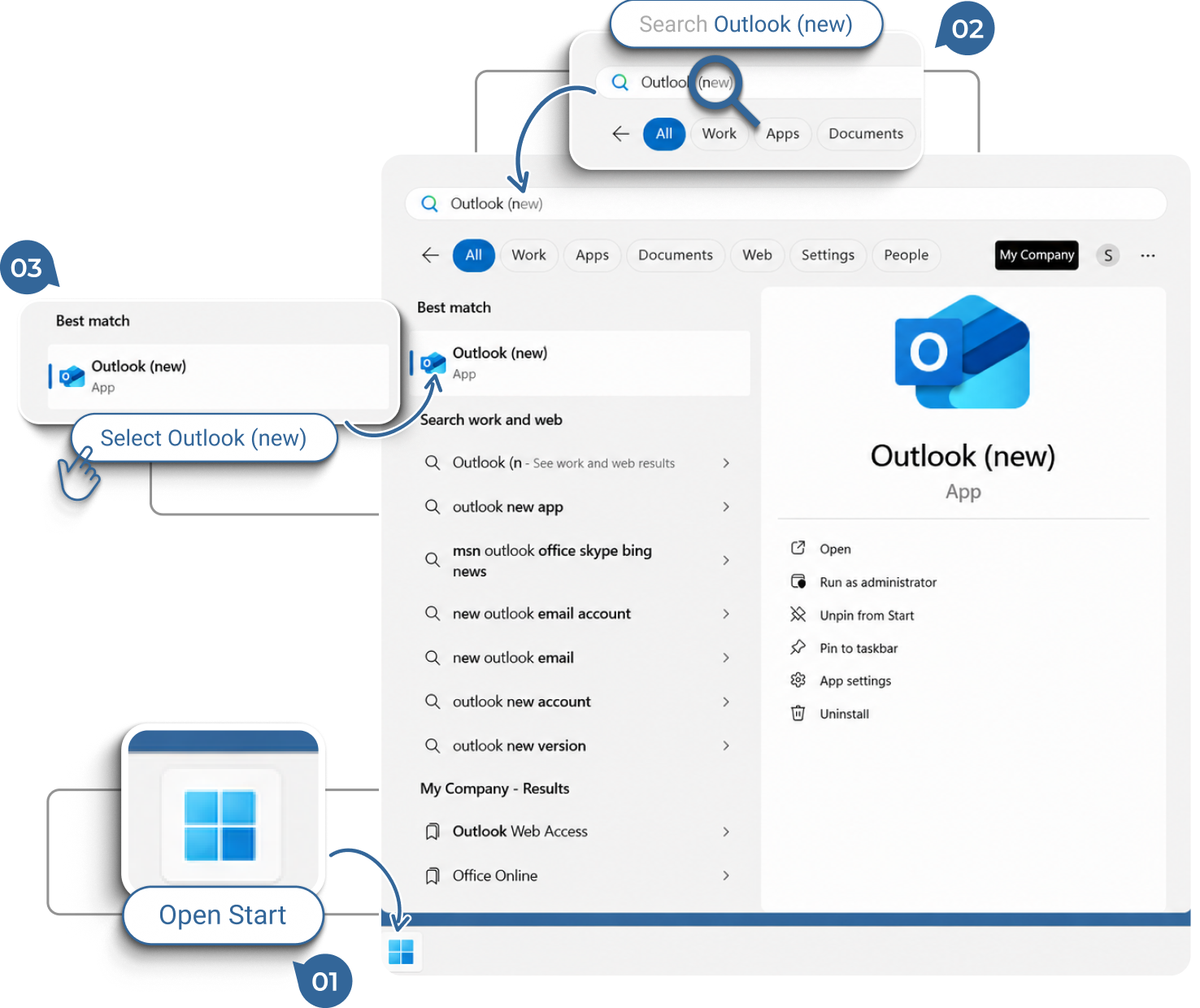
Open Outlook by clicking on the “Start” button or press the Windows Key on your keyboard.

1.
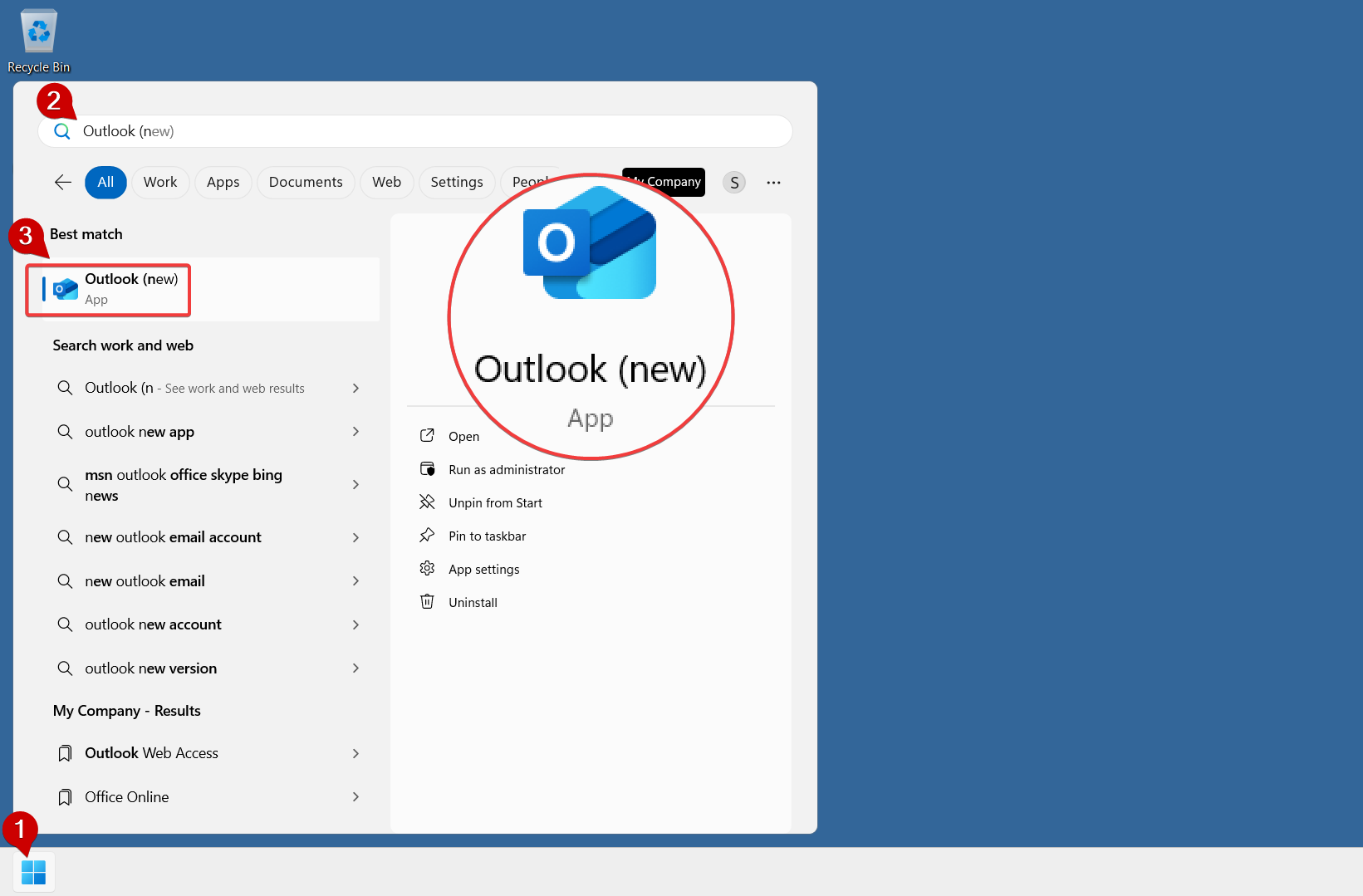
Click the Start Menu (Windows icon) in the bottom-left corner of your screen.

2.
Type Outlook (new) in the search bar.

3.
Click on Outlook (new) App from the search results to open it.

Outlook will launch and your mailbox appears.

Locate your Shared Mailbox

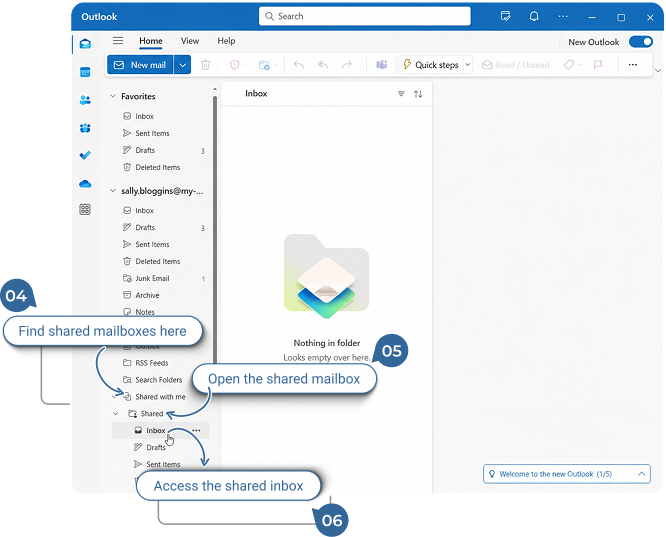
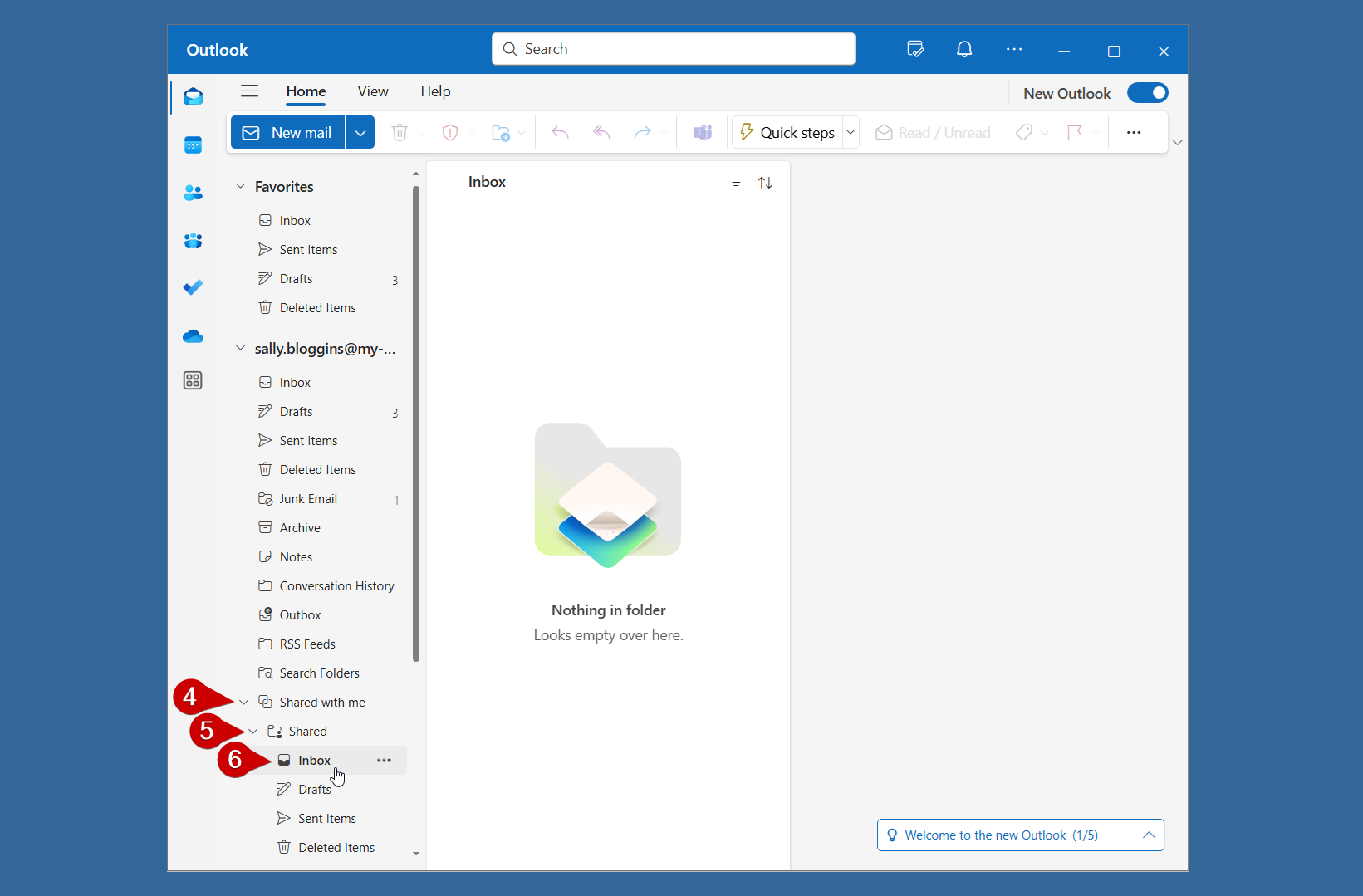
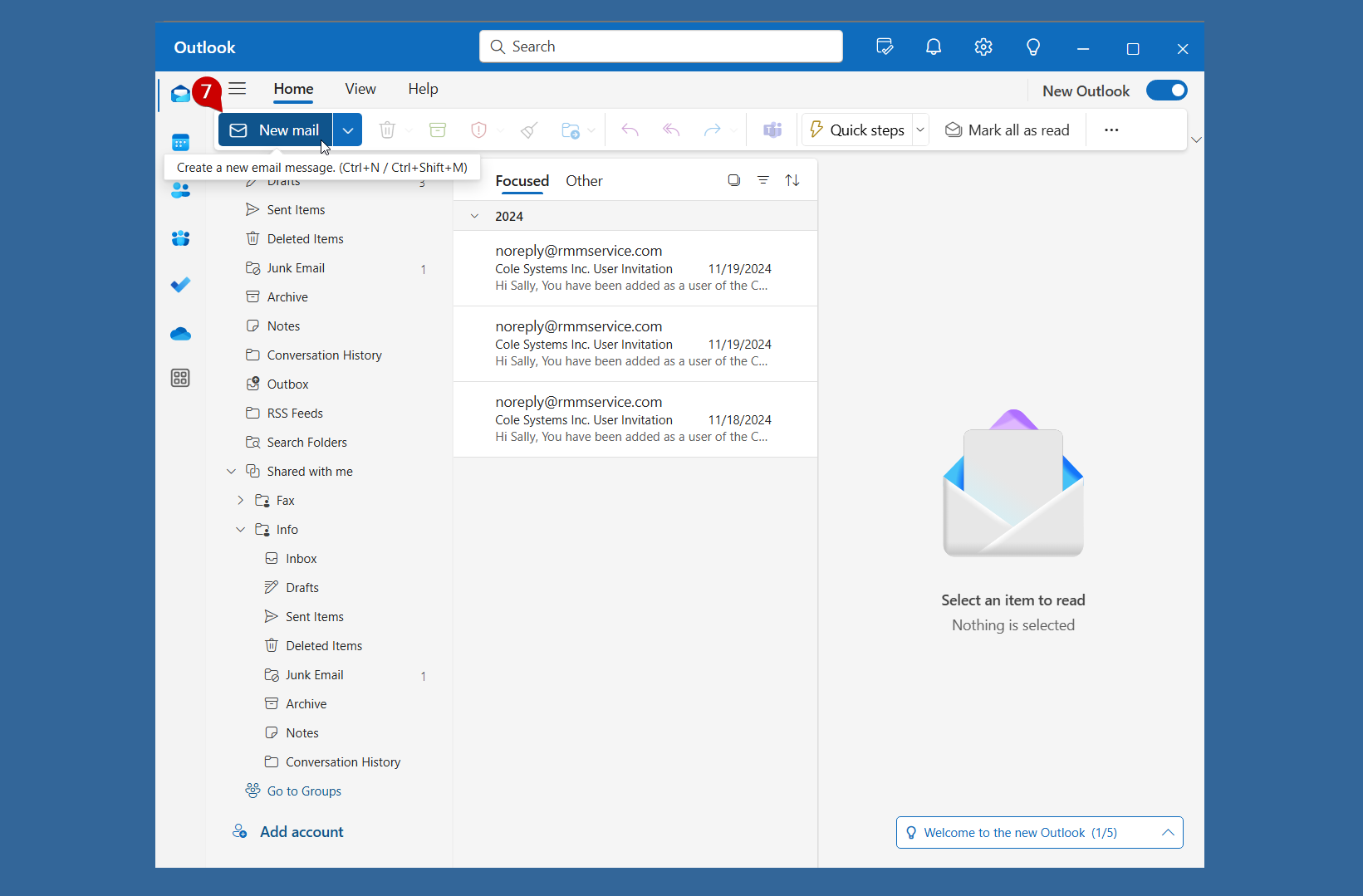
Once Outlook (new) is open, you can find the shared mailbox in the left-hand Folder Pane below your primary email account within the “Shared with me” folder. You may need to expand the mailbox to see its folders.

4.
In the left Folder Pane, locate the “Shared with me” folder and click on it to reveal your shared mailboxes.

5.
Click on your Shared mailbox to show the folders within.

6.
Click on Inbox or any other folder you need to access.

Send from the Shared Mailbox

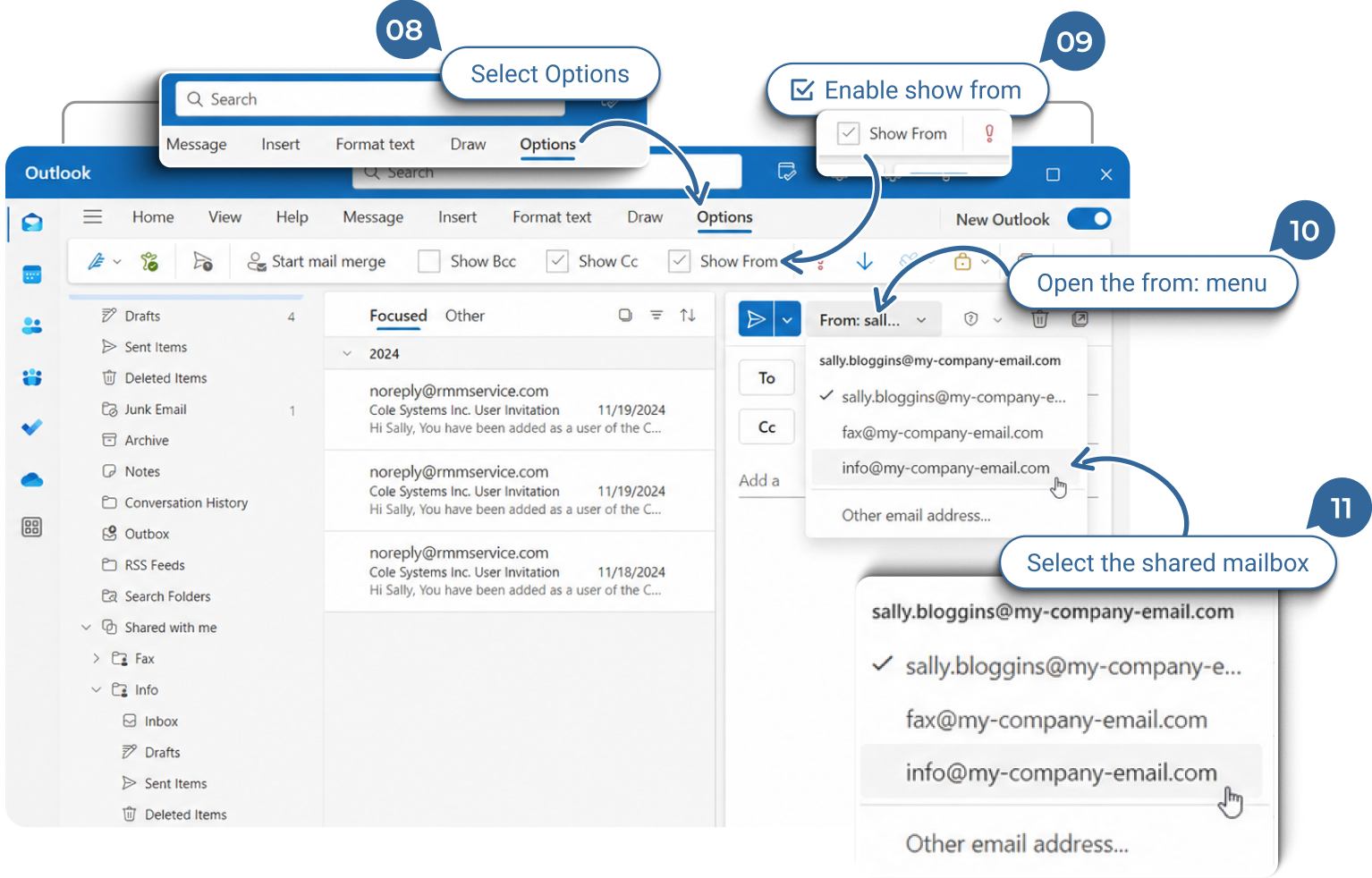
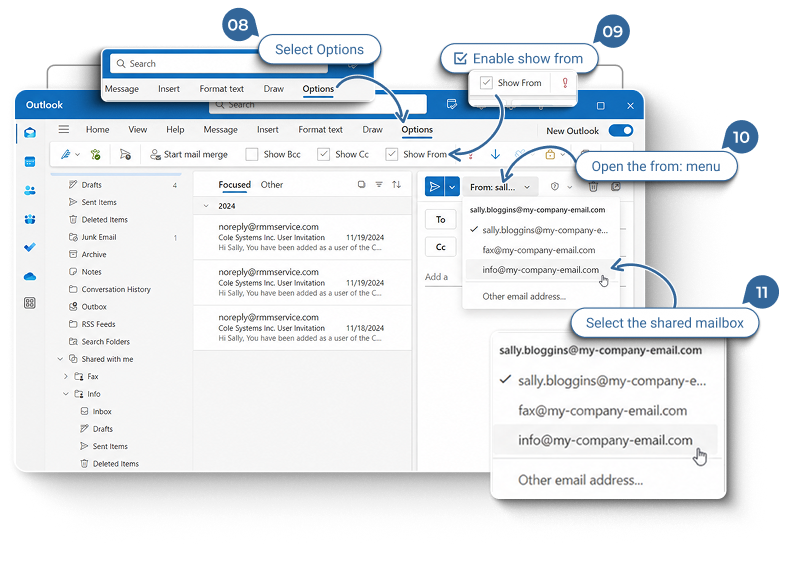
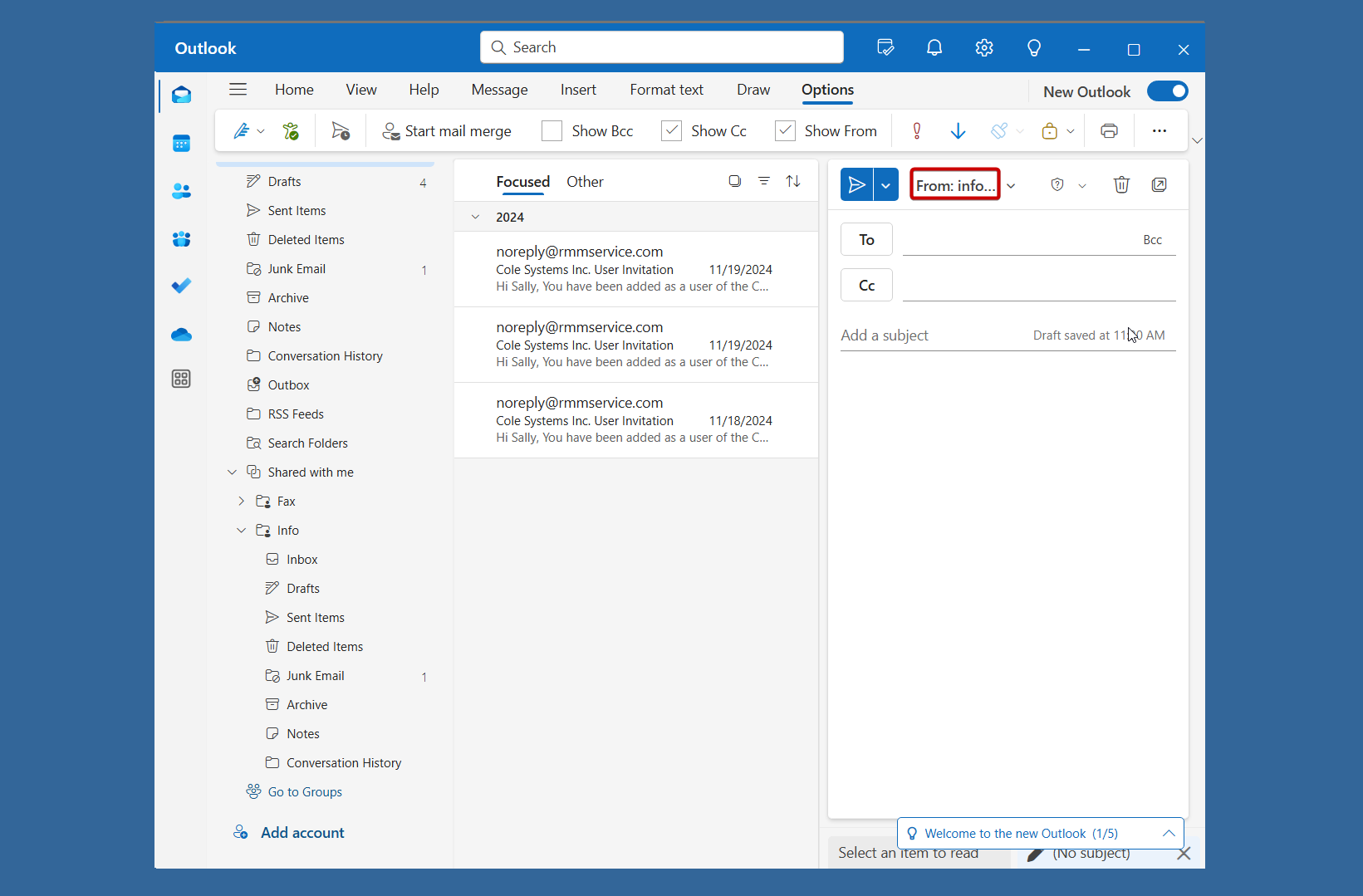
When responding to a message addresssed to the shared mailbox it is not necessary to specify the From address. When composing a new email you must select the shared mailbox as the “From” address otherwise your account will be the sender.
7.
Click “New Email” to start a new message.
8.
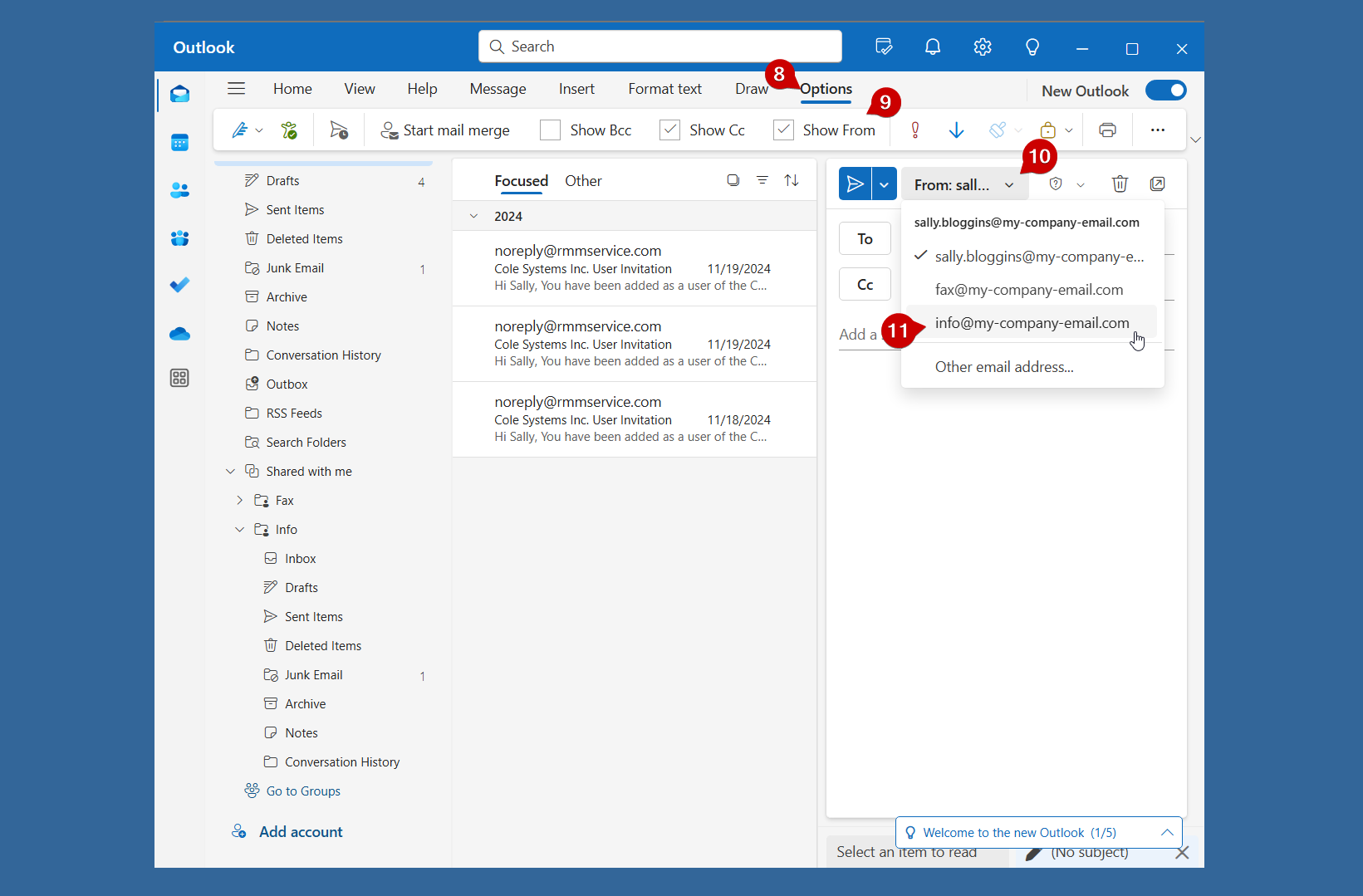
Select “Options” from the menu bar.

9.
Click on “Show From” to enable the From field.
10.
Open the “From:” dropdown.
11.

Select the address for the Shared mailbox that you would like to send from.

How to Access a Shared Mailbox in Outlook (new)

Next Step

2 / 2

1.

Open the Outlook (new) application on your computer

Open Outlook by clicking on the “Start” button or press the Windows Key on your keyboard.
  1. Click the Start Menu (Windows icon) in the bottom-left corner of your screen.
  2. Type Outlook (new) in the search bar.
  3. Click on Outlook (new) App from the search results to open it.
Outlook will launch and your mailbox appears.

2 / 2

Next Step

2.

Locate your Shared Mailbox

Once Outlook (new) is open, you can find the shared mailbox in the left-hand Folder Pane below your primary email account within the “Shared with me” folder. You may need to expand the mailbox to see its folders.
  1. In the left Folder Pane, locate the “Shared with me” folder and click on it to reveal your shared mailboxes.
  2. Click on your Shared mailbox to show the folders within.
  3. Click on Inbox or any other folder you need to access.

2 / 2

Next Step

3.

Send from the Shared Mailbox

When responding to a message addresssed to the shared mailbox it is not necessary to specify the From address. When composing a new email you must select the shared mailbox as the “From” address otherwise your account will be the sender.
  1. Click “New Email” to start a new message.
  2. Select “Options” from the menu bar.
  3. Click on “Show From” to enable the From field.
  4. Open the “From:” dropdown.
  5. Select the address for the Shared mailbox that you would like to send from.

2 / 2

Next Step

Next Step

2 / 2

Get Started

Ready to Make Your IT Easier to Manage?

Talk to Cole Systems about your current technology challenges, security concerns, backup needs, or infrastructure goals. We’ll help you understand what needs attention and recommend practical next steps for your business.