Cole Systems Inc.

How to Share Files and Folders in Share Point

Open your email

Open your email to accept the resource access link that was shared with you
1.
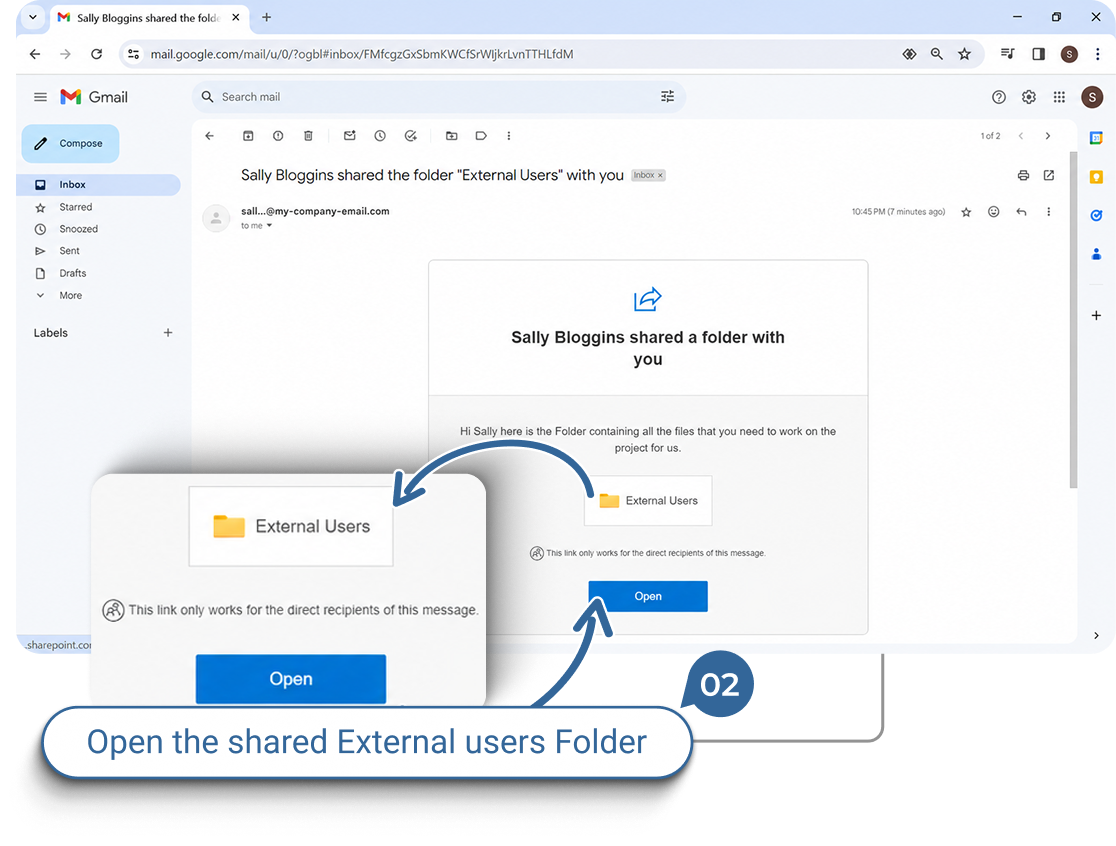
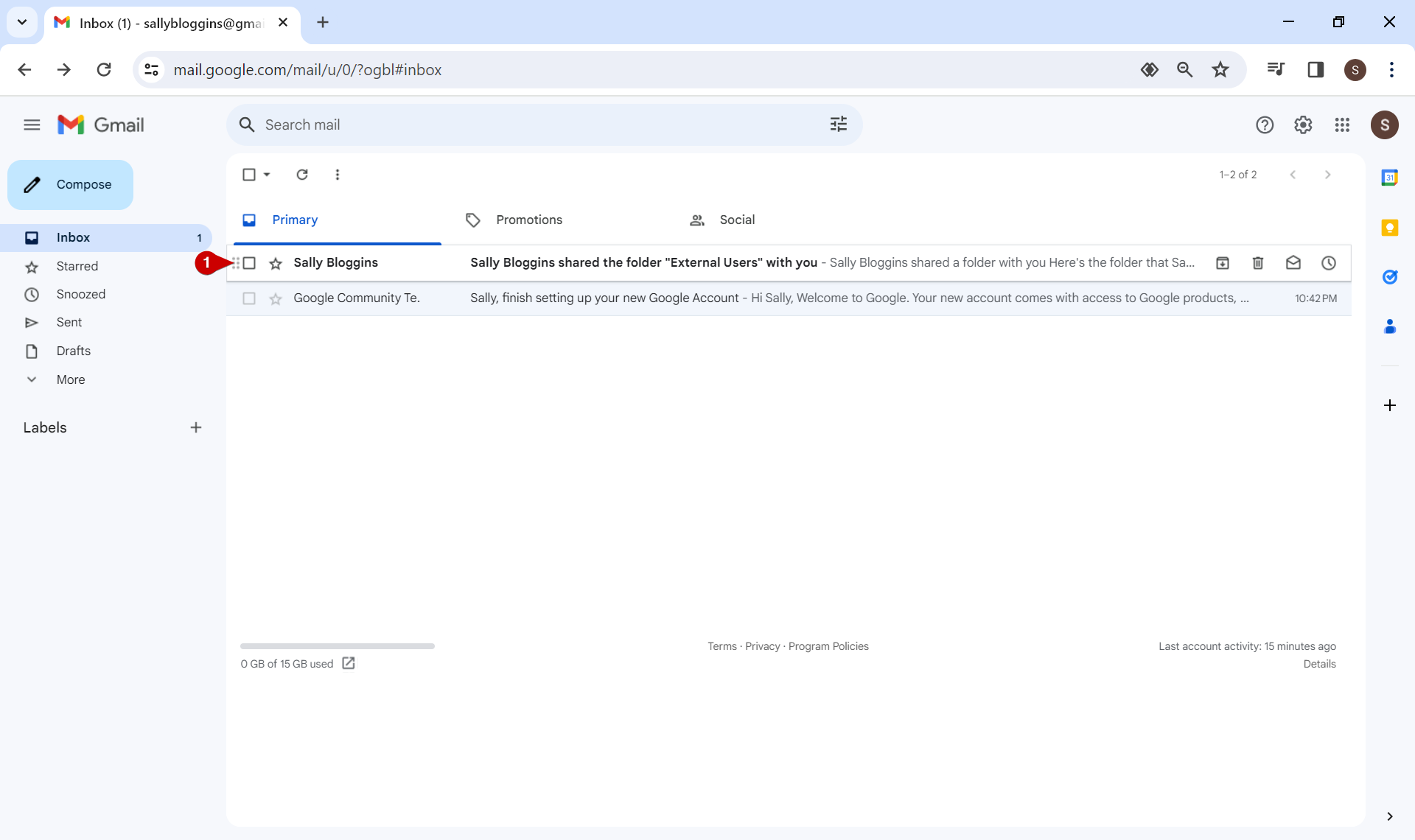
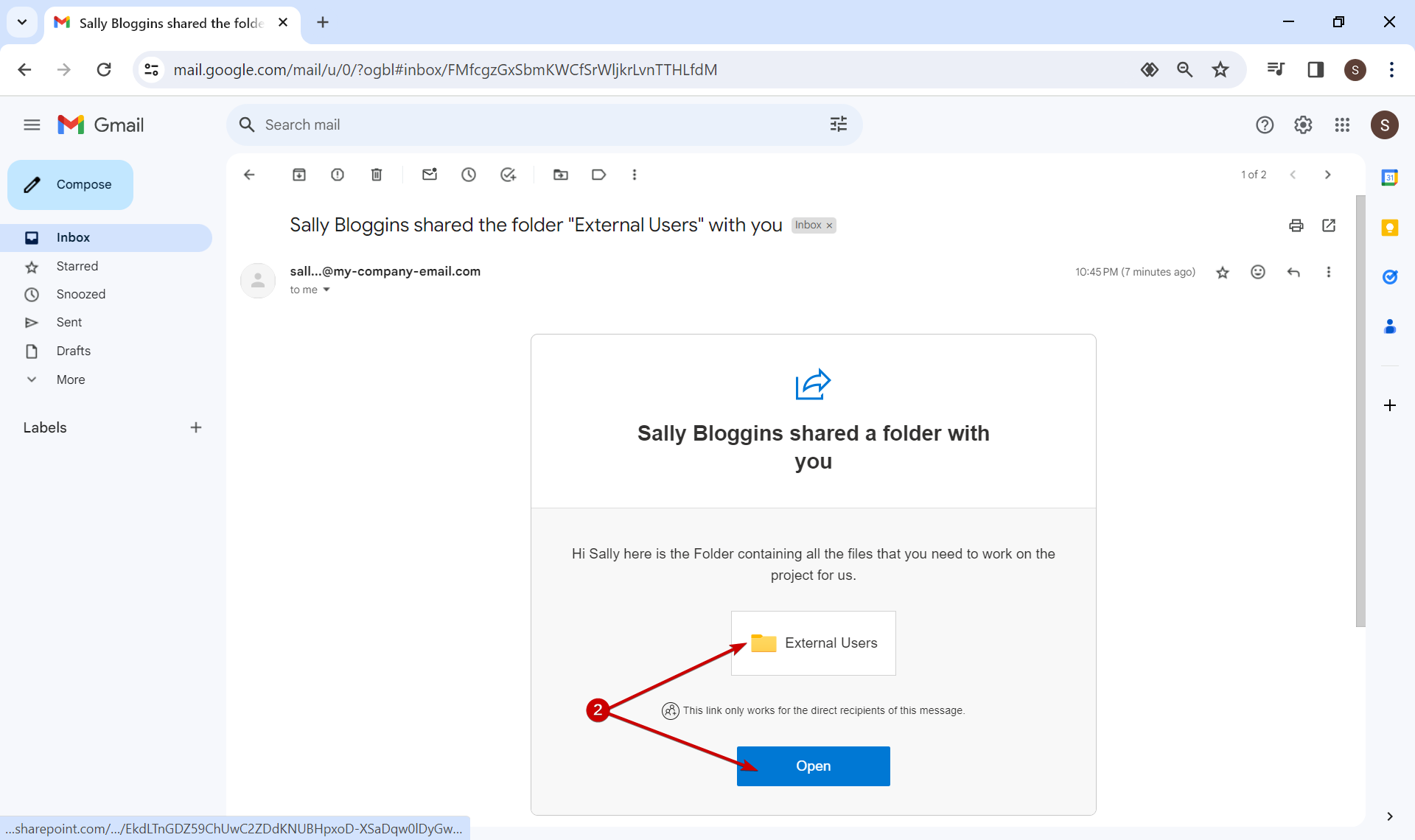
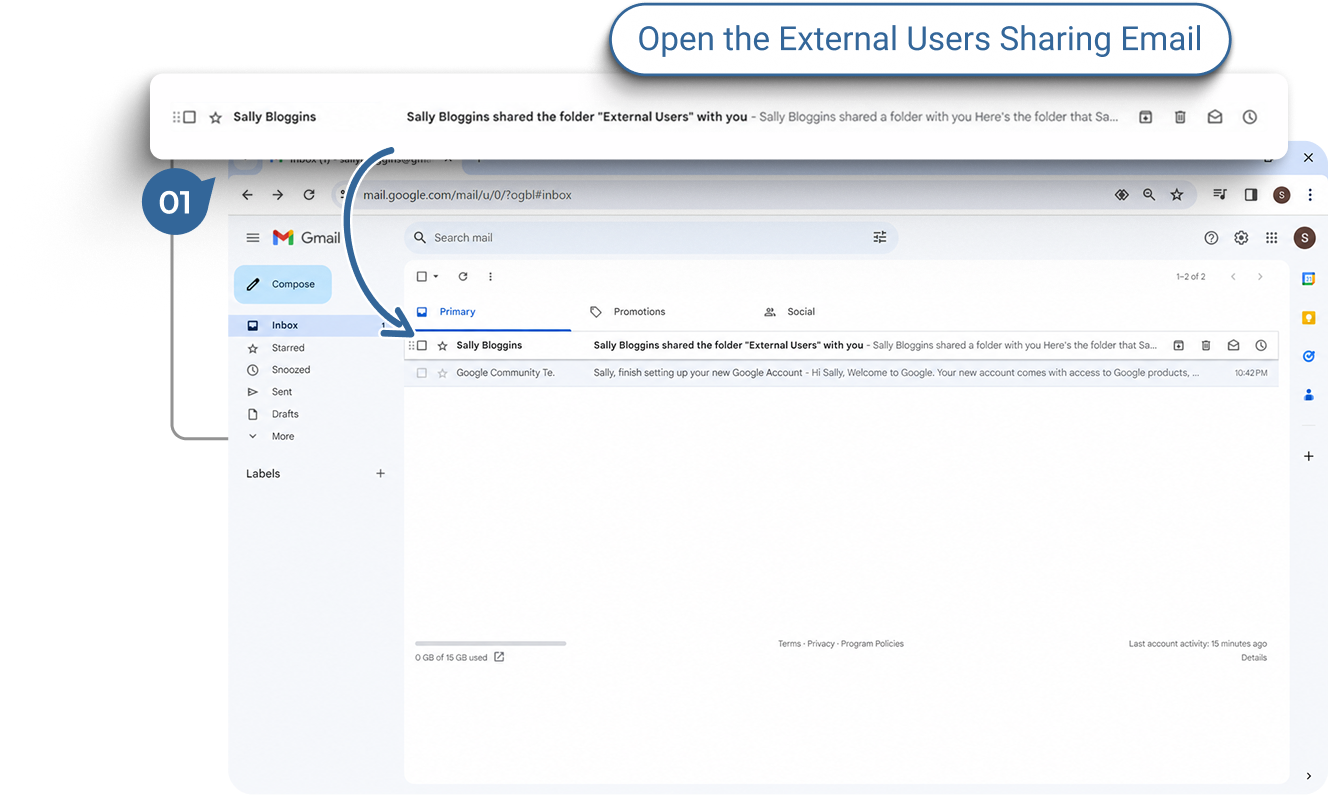
Open your email inbox and locate the email from the person who shared the company resource.
2.
Access the resource link by clicking on the blue “Open” button or by clicking on the folder icon provided in the email.
3.
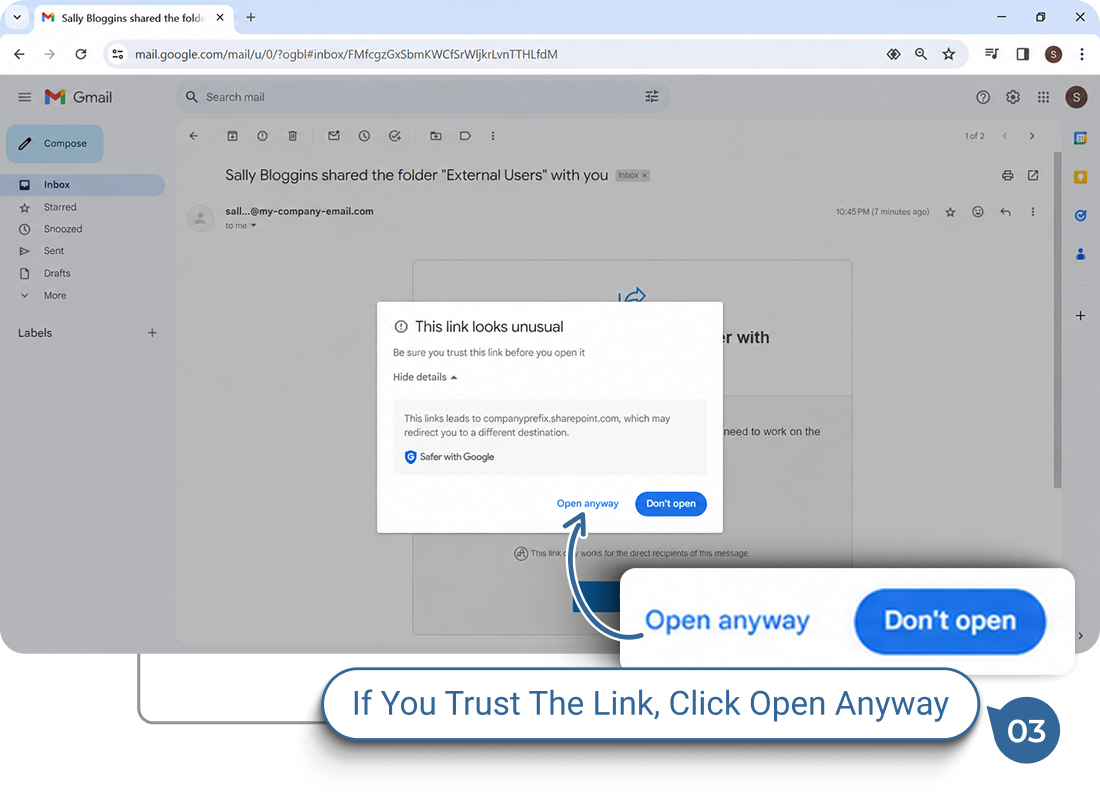
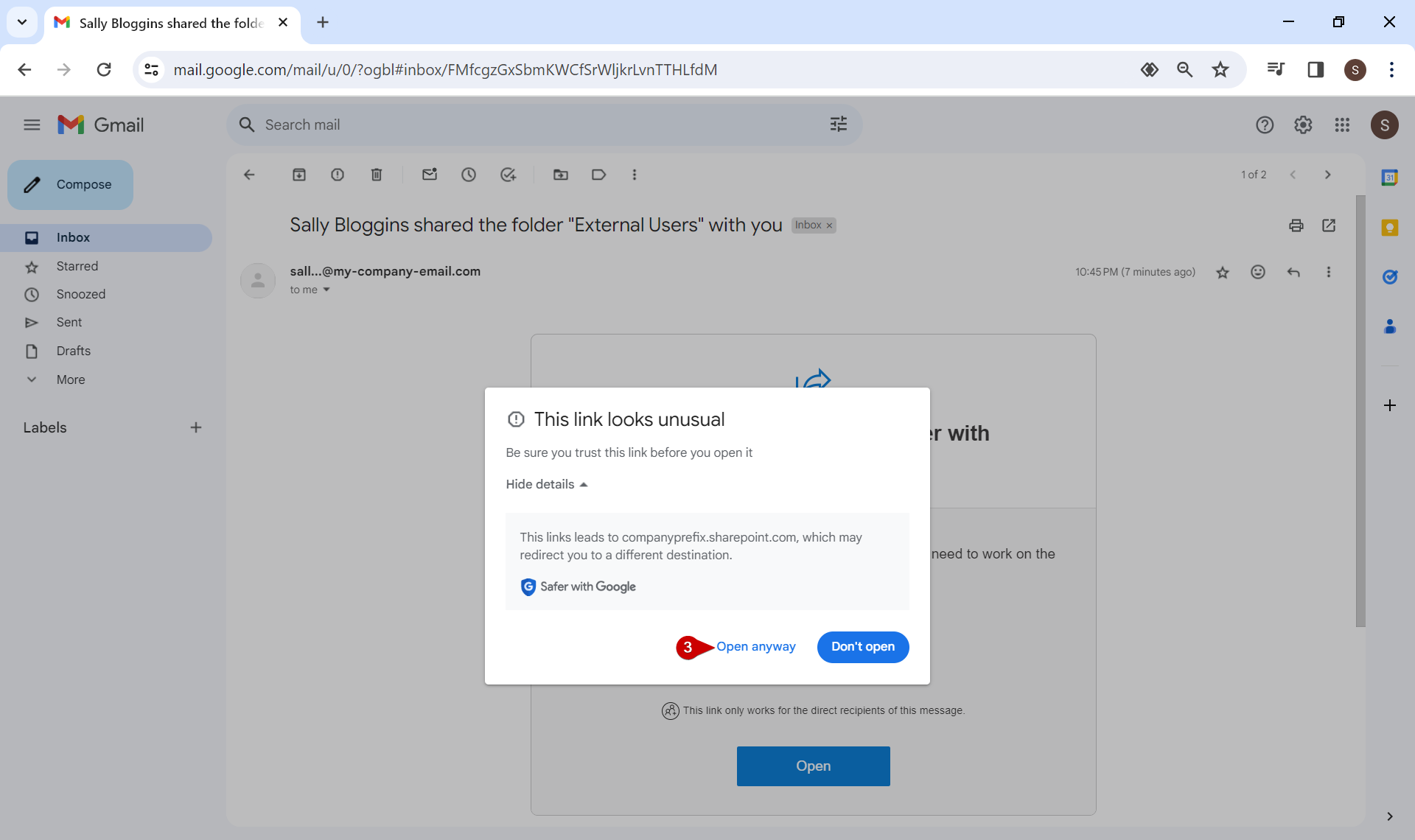
If a popup warning appears, proceed by clicking through to open the link.

Initiate Microsoft Verification

Enter Verification details to recieve a verification code
4.
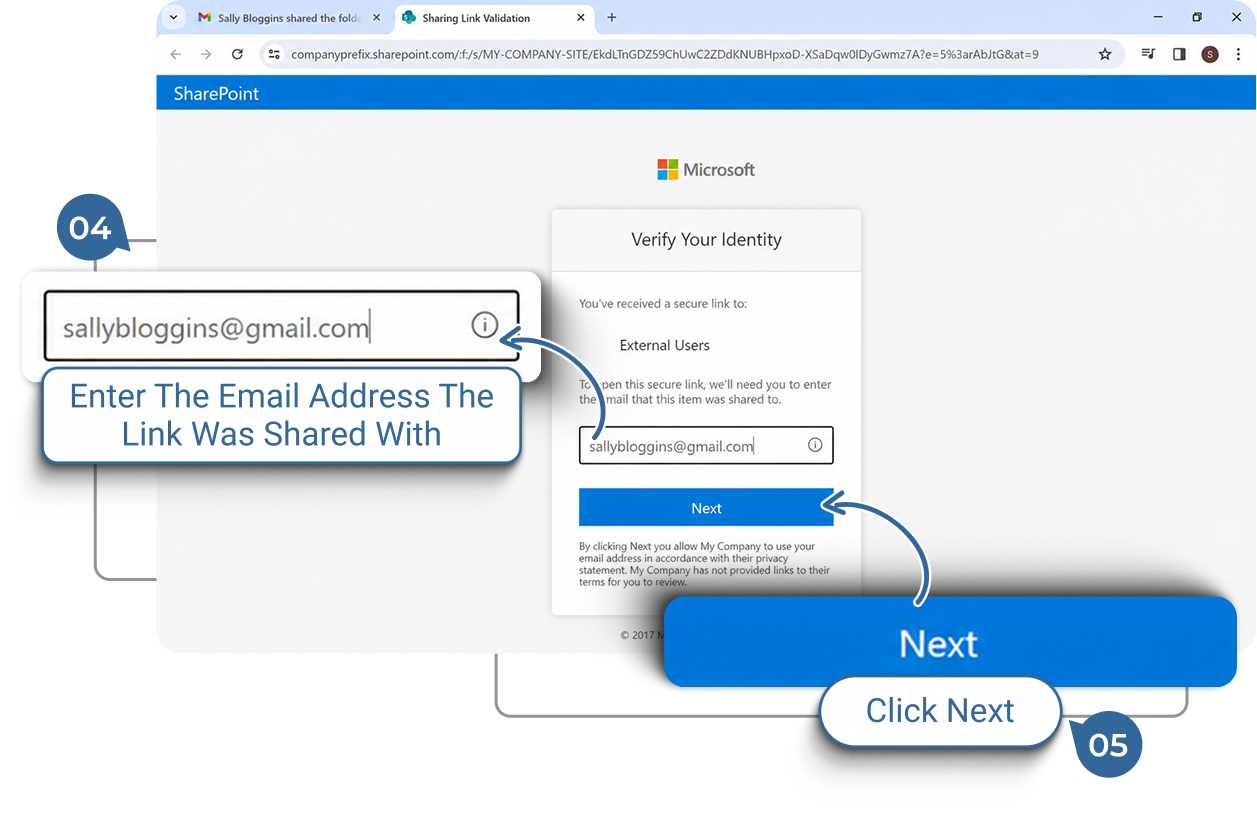
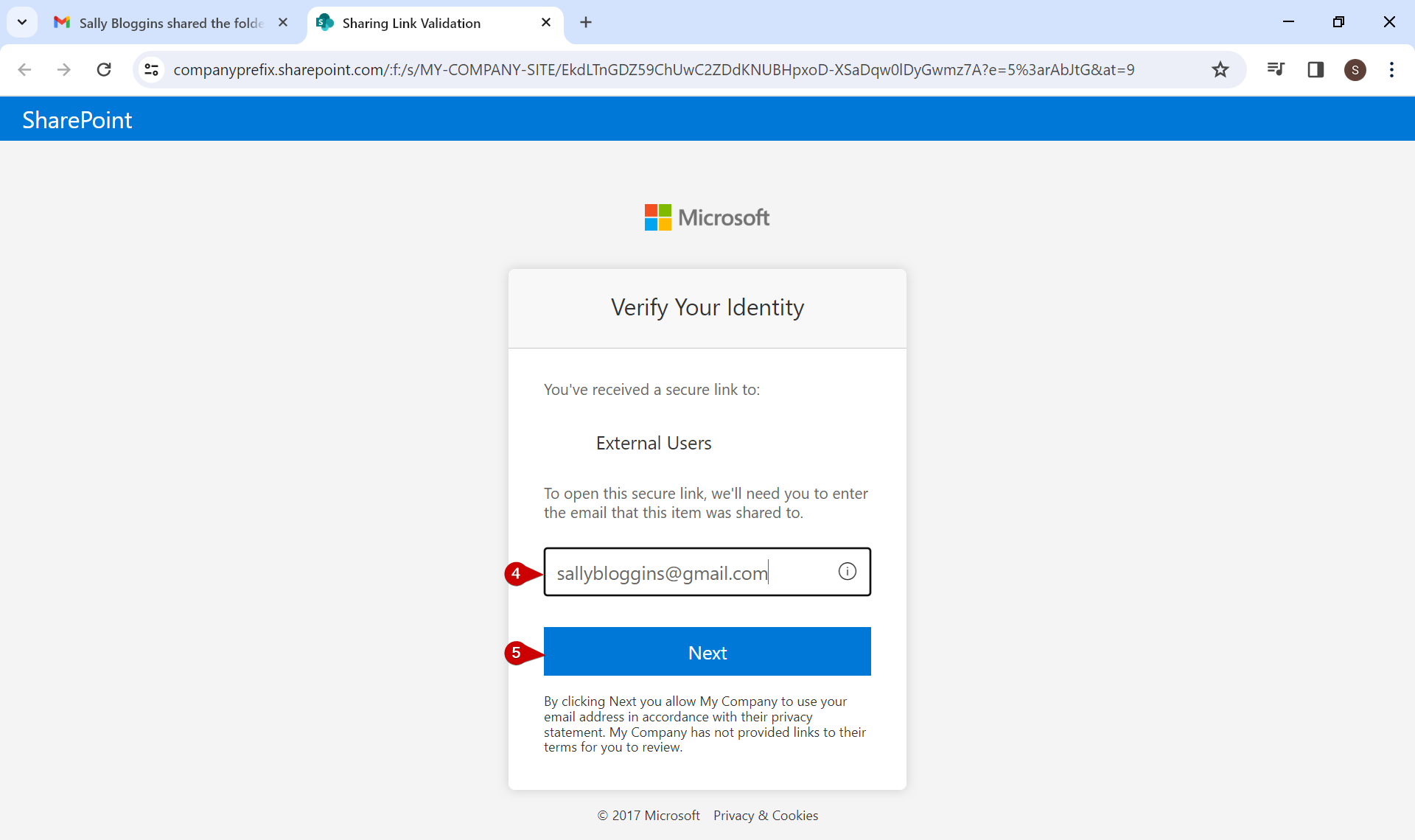
You will be directed to a Microsoft verification page where you need to enter your email address.

This must be the same email address that the person sharing the file or folder used when sending the invitation.

5.
Click on the blue “Next” button to request a verification code to be sent to your email address.

Enter Verification Code

Complete the Microsoft Verification Procedure
6.
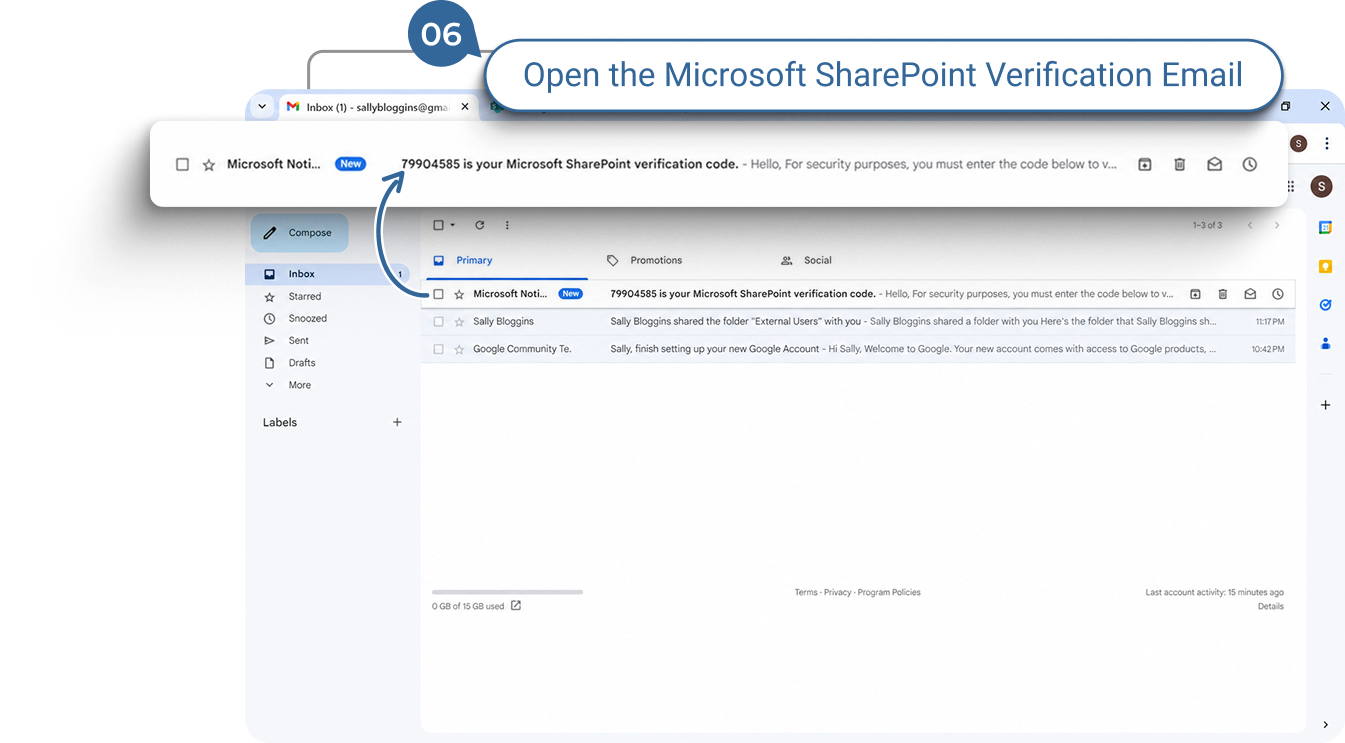
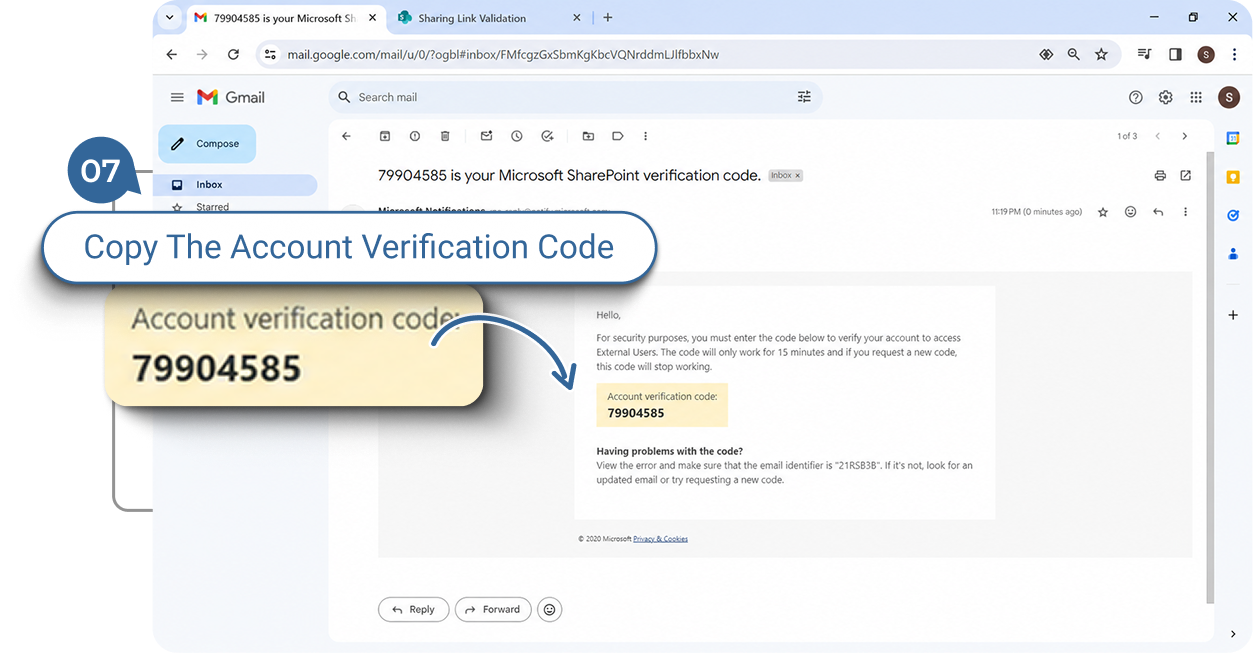
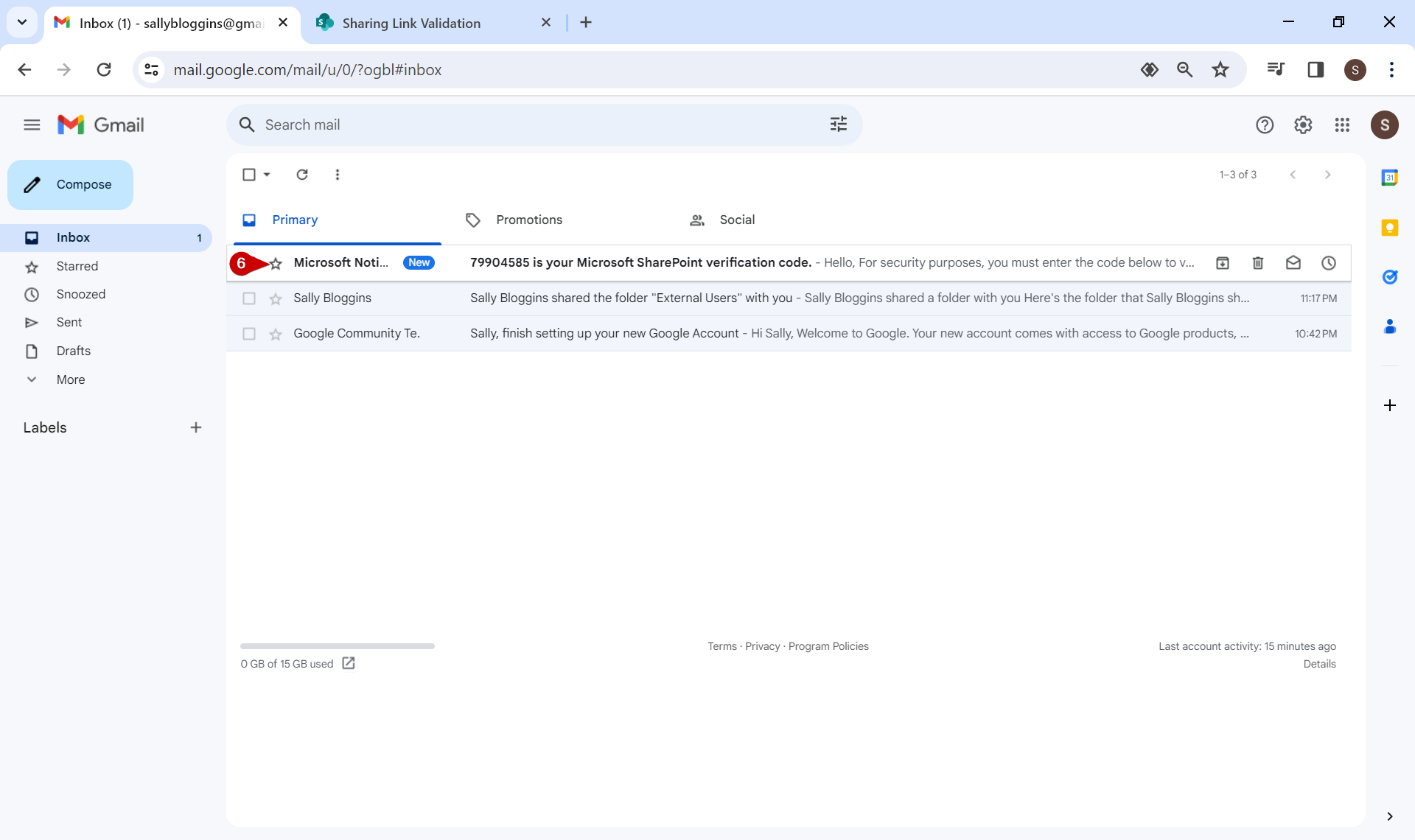
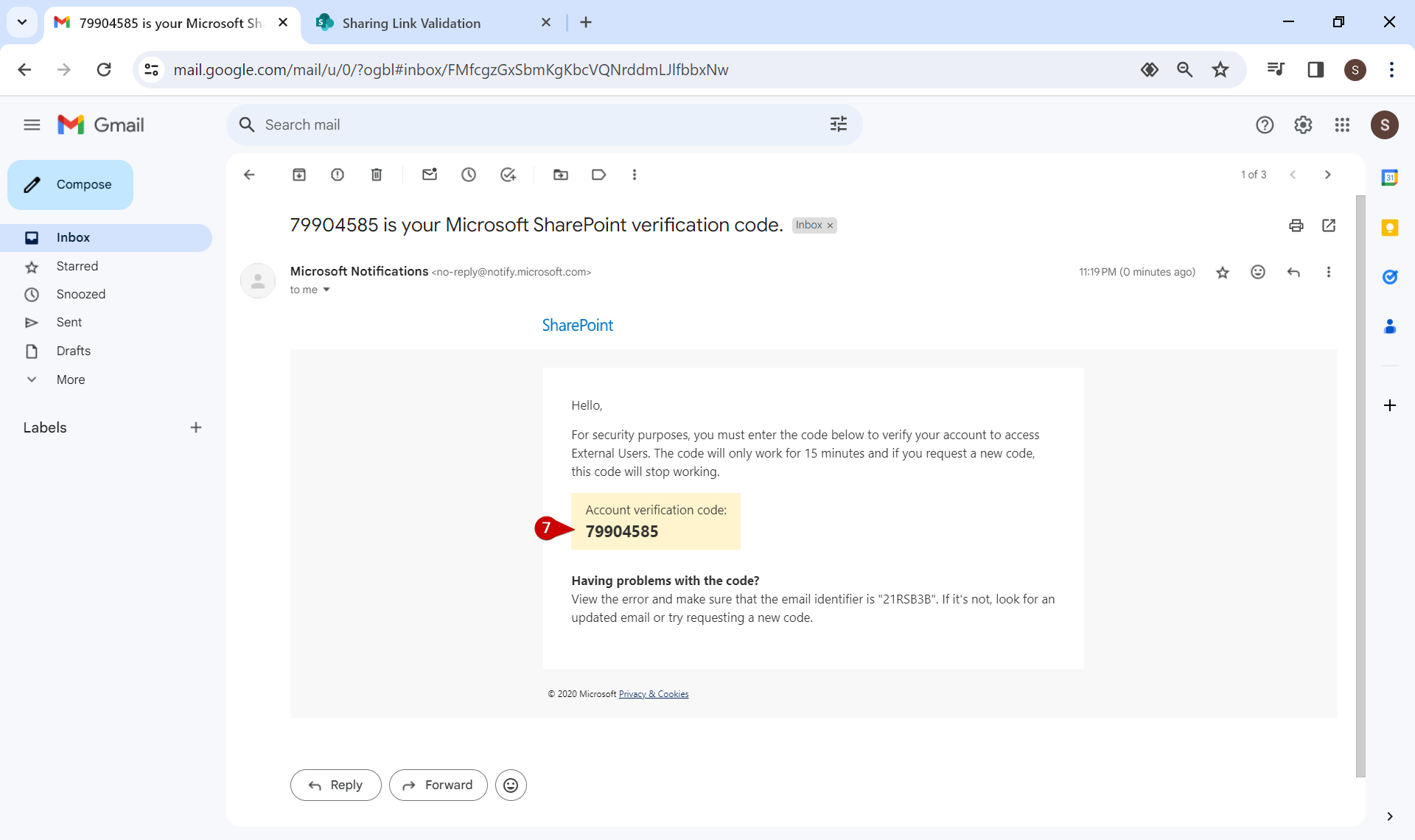
Return to your email inbox to find the verification email sent by Microsoft containing the 8-digit “Verification code.”
7.
Copy or take note of the verification code.
8.
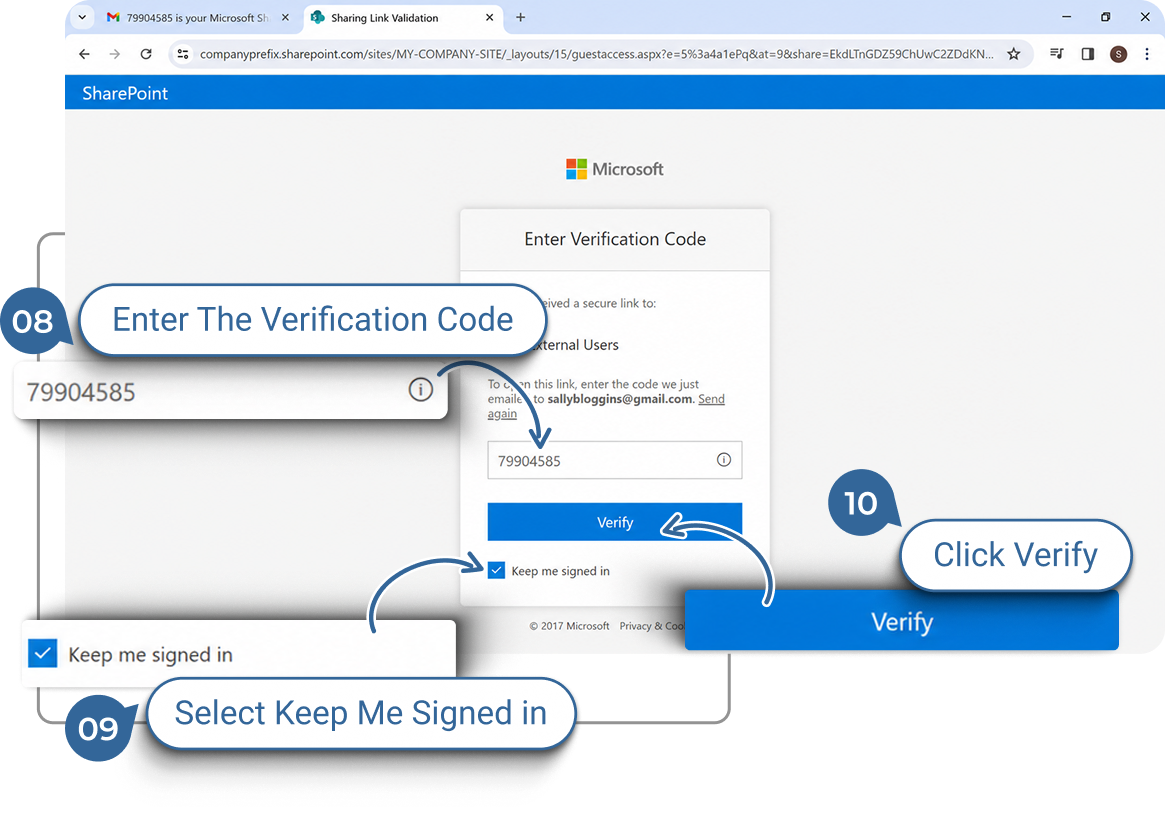
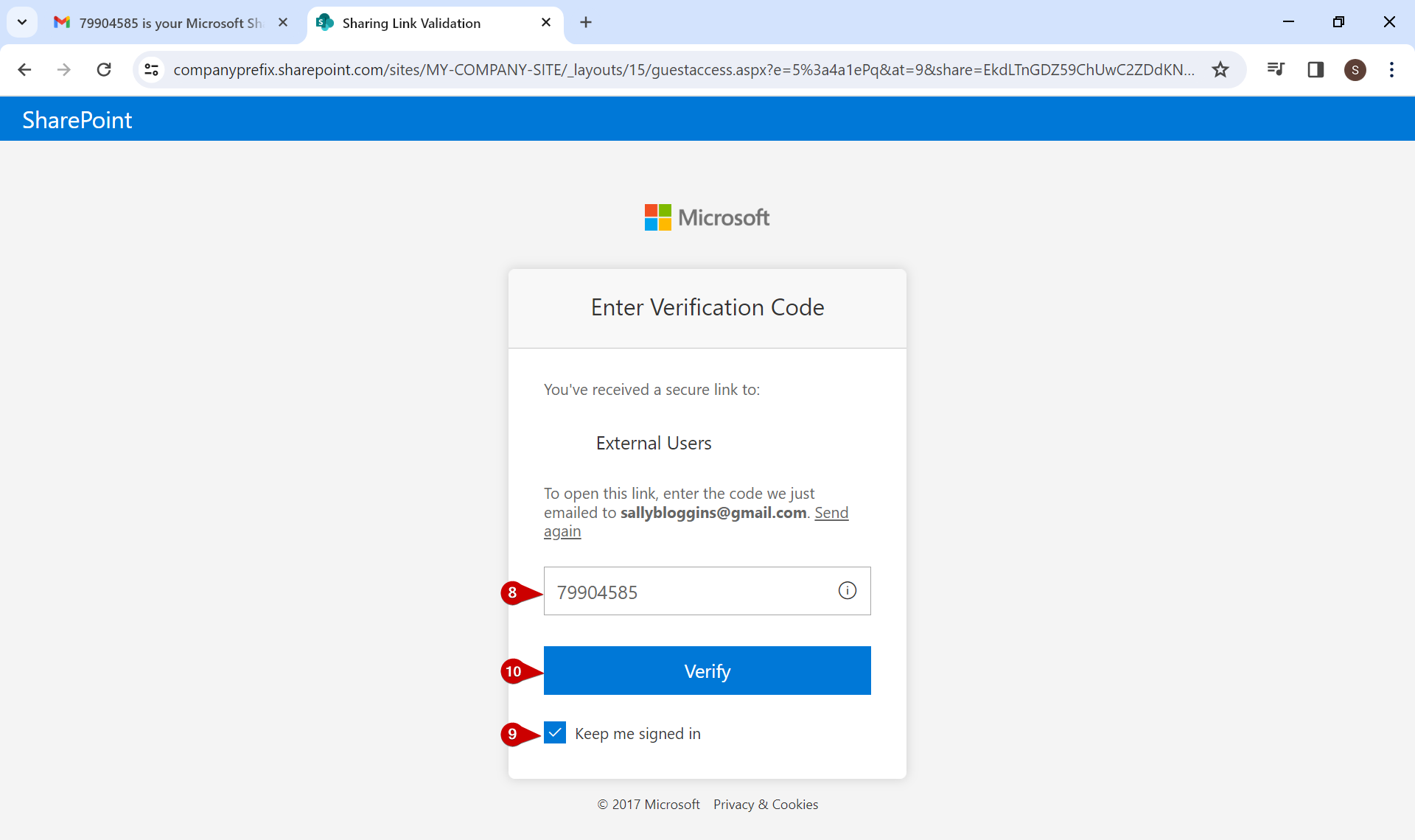
Return to the Microsoft verification tab and enter the 8-digit verification code.
9.
Check the “Keep me signed in” checkbox.
10.
Click the blue “Verify” button to be redirected to the file or the SharePoint page where a “Folder” resides.
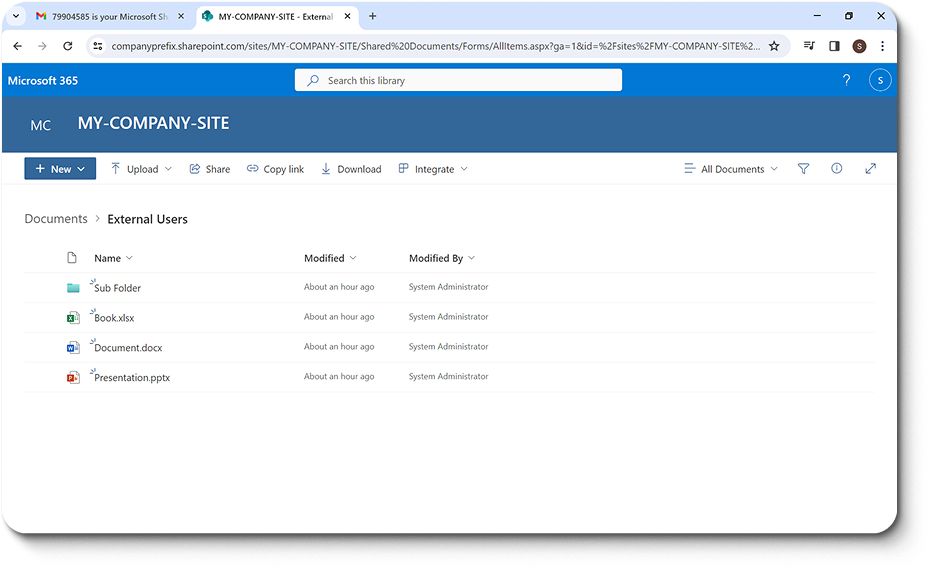
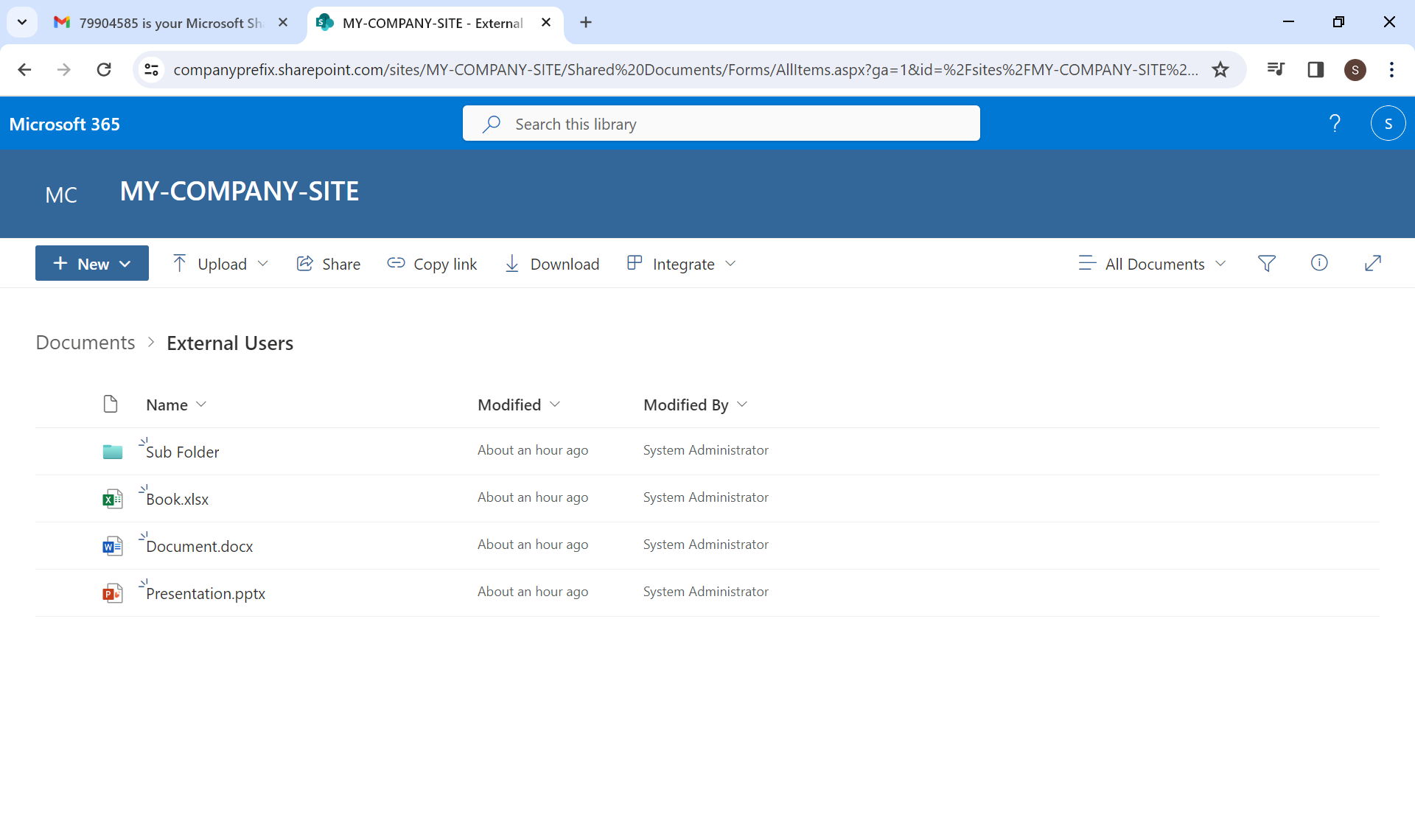
You should now have access to the “Folder” or “File” that was shared with you, and you’ll be able to view or edit it, depending on the permissions that were granted to you.


How to Share Files and Folders in Share Point with External Users

Next Step

2 / 2

1.

Open your email

Open your email to accept the resource access link that was shared with you
  1. Open your email inbox and locate the email from the person who shared the company resource.
  2. Access the resource link by clicking on the blue “Open” button or by clicking on the folder icon provided in the email.
  3. If a popup warning appears, proceed by clicking through to open the link.

2 / 2

Next Step

2.

Initiate Microsoft Verification

Enter Verification details to recieve a verification code
  1. You will be directed to a Microsoft verification page where you need to enter your email address.

    This must be the same email address that the person sharing the file or folder used when sending the invitation.
  2. Click on the blue “Next” button to request a verification code to be sent to your email address.

2 / 2

Next Step

3.

Enter Verification Code

Complete the Microsoft Verification Procedure
  1. Return to your email inbox to find the verification email sent by Microsoft containing the 8-digit “Verification code.”
  2. Copy or take note of the verification code.
  3. Return to the Microsoft verification tab and enter the 8-digit verification code.
  4. Check the “Keep me signed in” checkbox.
  5. Click the blue “Verify” button to be redirected to the file or the SharePoint page where a “Folder” resides.
You should now have access to the “Folder” or “File” that was shared with you, and you’ll be able to view or edit it, depending on the permissions that were granted to you.
2 / 2

Next Step

Next Step

2 / 2

Get Started

Ready to Make Your IT Easier to Manage?

Talk to Cole Systems about your current technology challenges, security concerns, backup needs, or infrastructure goals. We’ll help you understand what needs attention and recommend practical next steps for your business.