Cole Systems Inc.

How to Use Make Me Admin to Perform

Open Make Me Admin

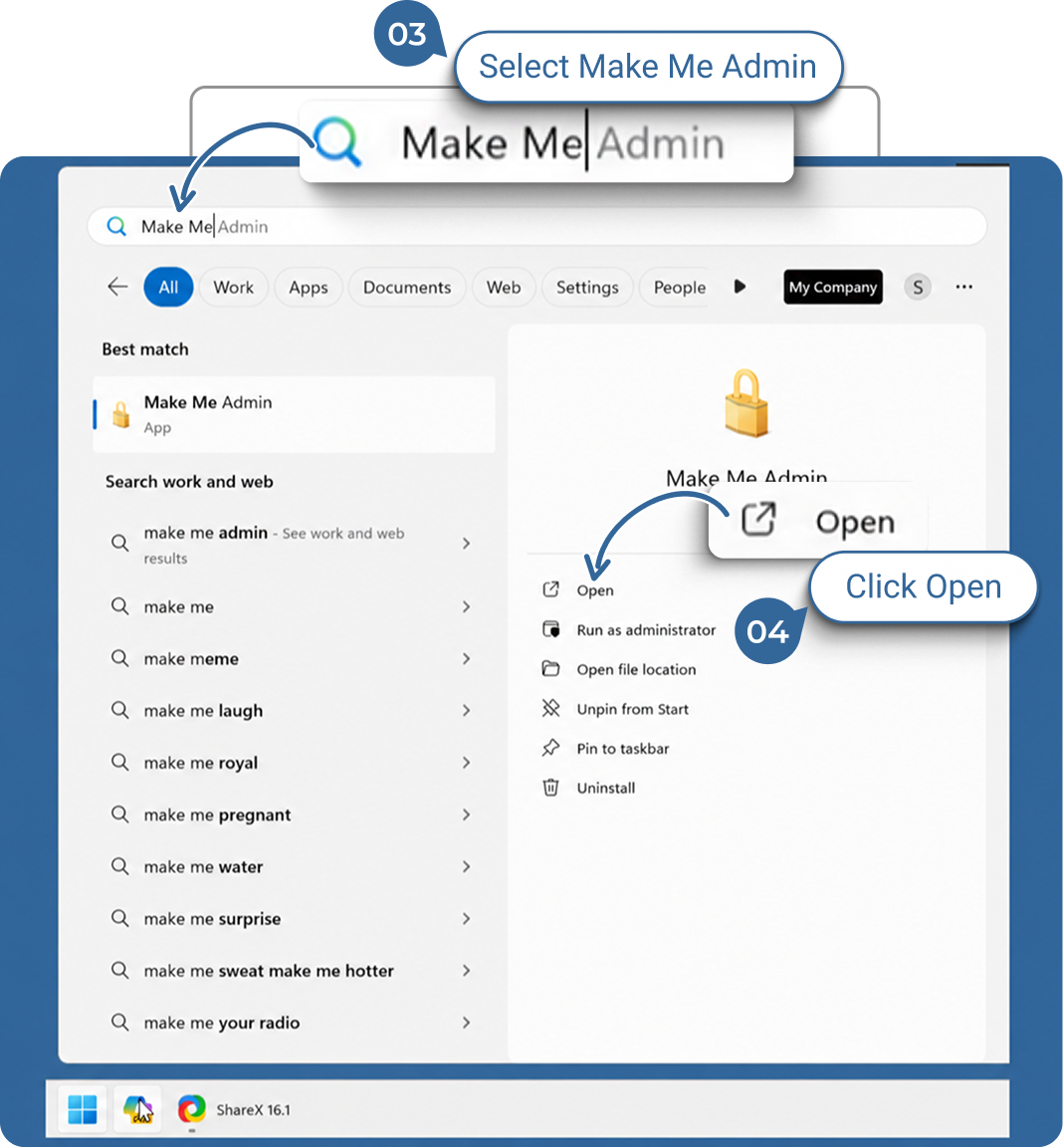
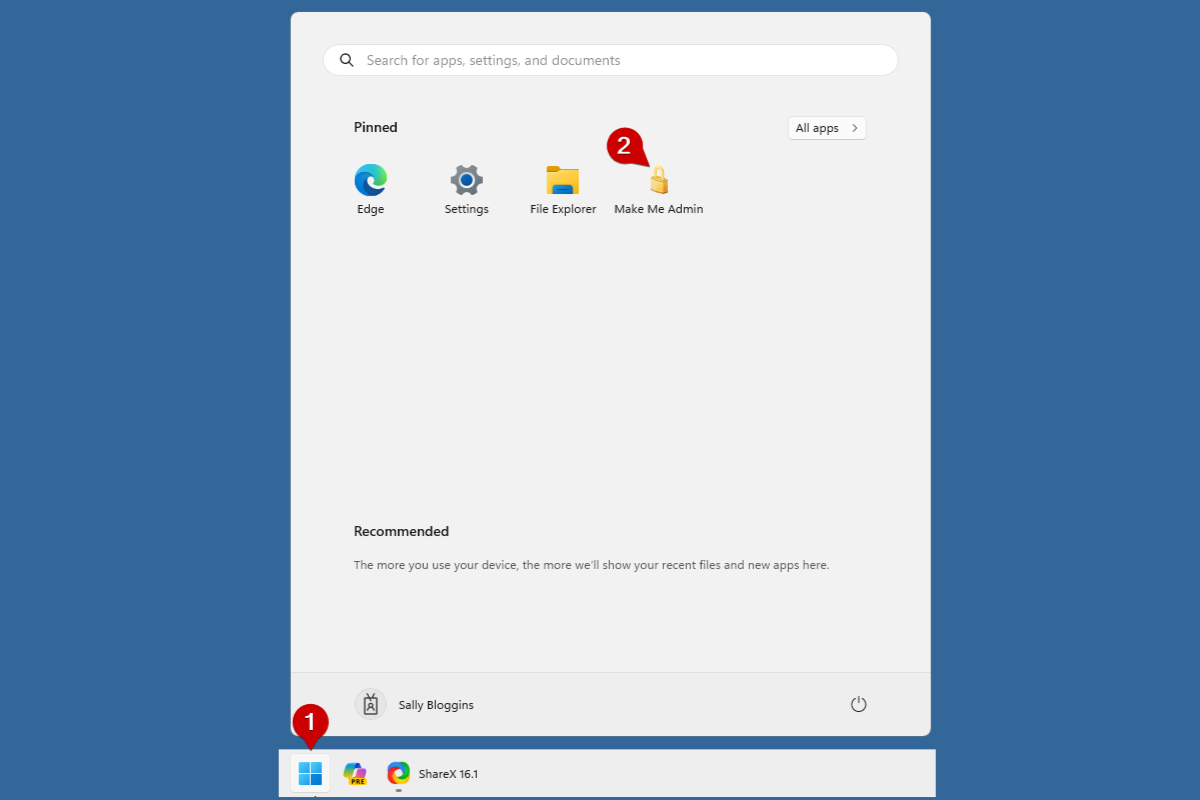
From the Windows start Menu Open the Make Me Admin application
1.
Click on the Windows Start icon or press the Windows logo key on your keyboard.
2.
If you see the Make Me Admin icon pinned in the Start Menu, click on it.
3.
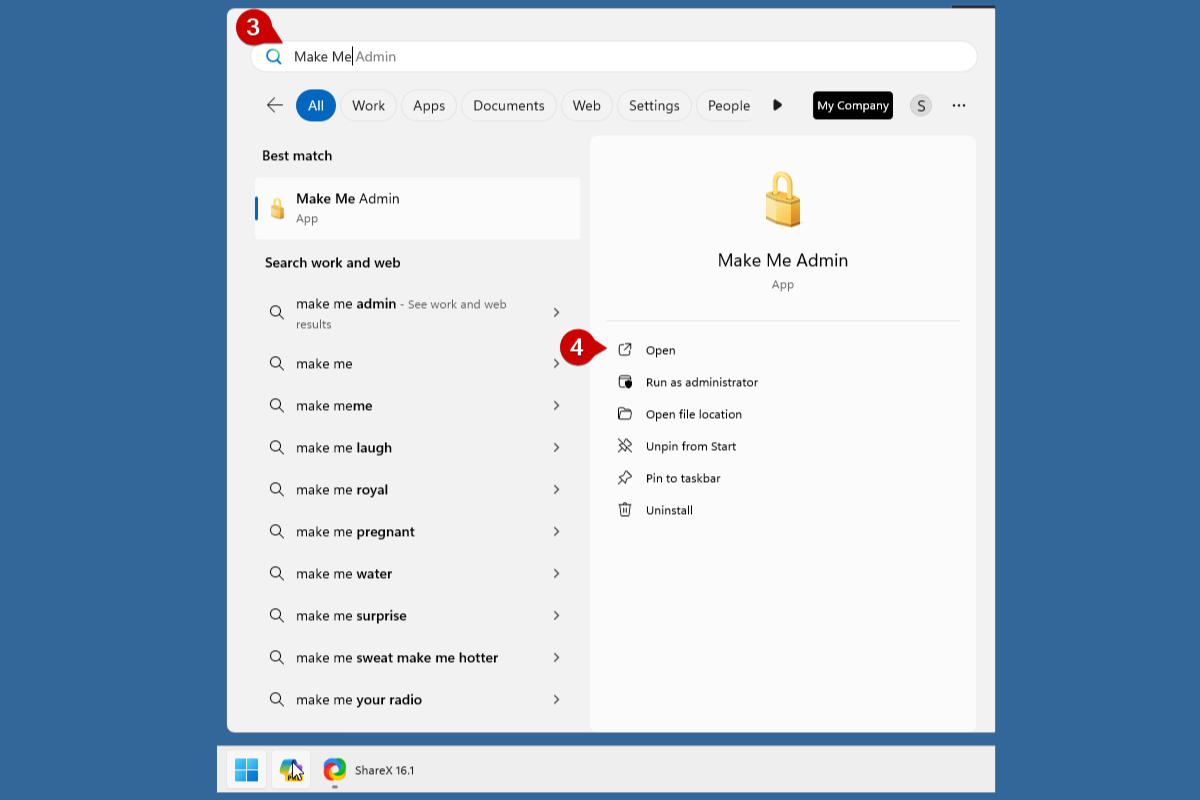
If you do not see the Make Me Admin icon, go to the search field and enter “Make Me Admin”.
4.
Once Windows Search has located the Make Me Admin application, click on it.

Grant Administrator Rights

Grant Administrator Rights
5.
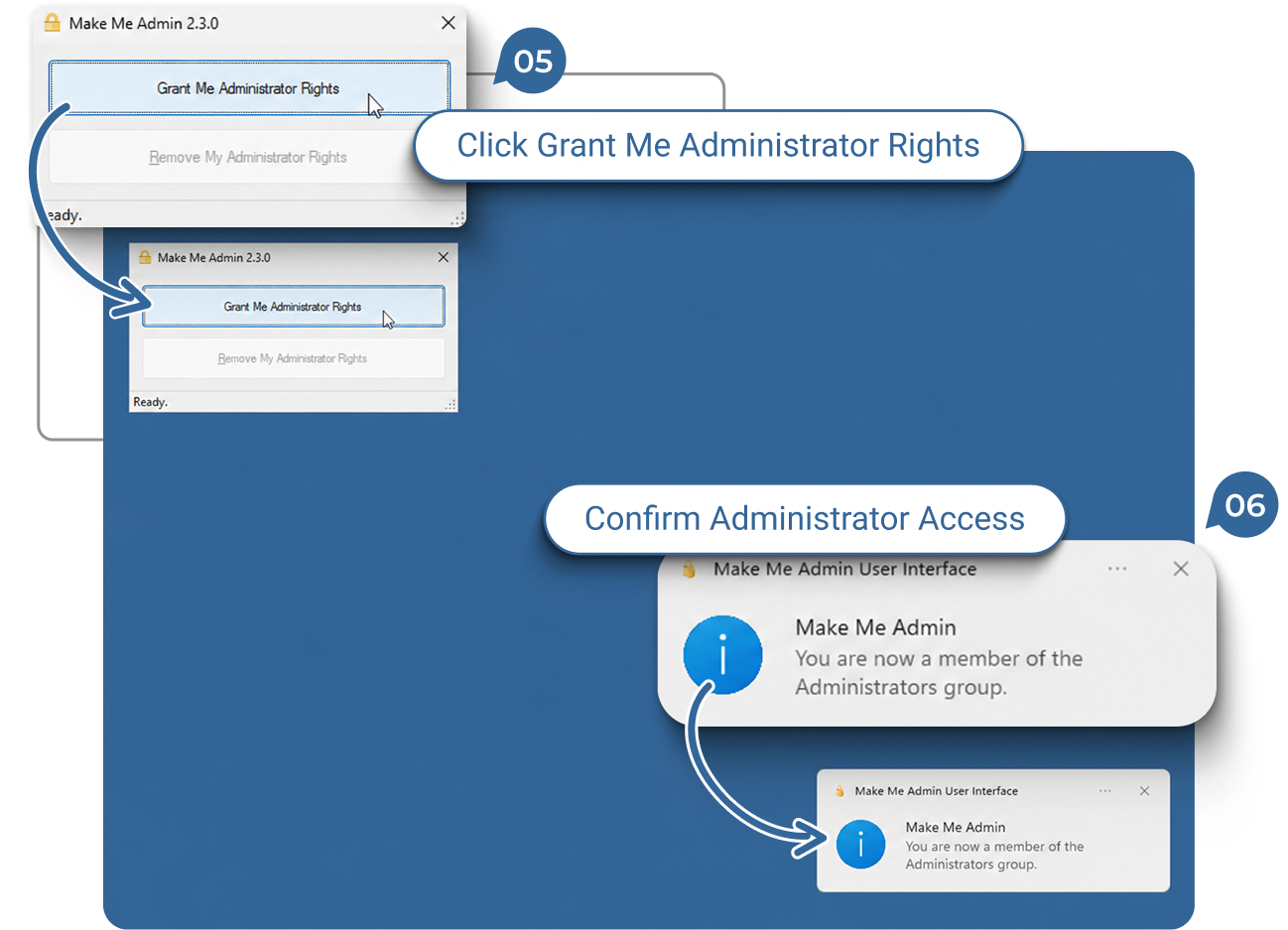
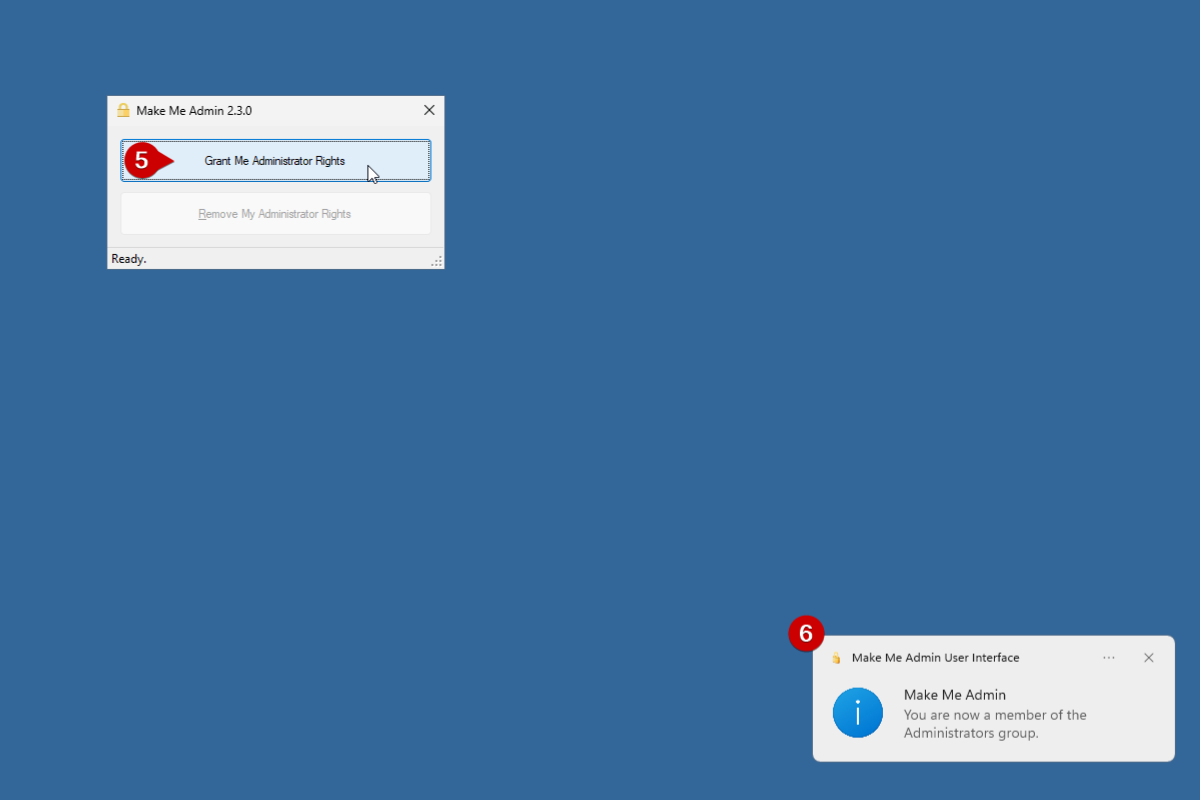
When the Make Me Admin application window appears, click on “Grant Me Administrator Rights.”
6.
A system notification will appear in the bottom right corner of your screen, confirming that you have been added to the Administrators group with the message: “You are now a member of the Administrators group.”
Now you may enter your username and password when Windows requests it.

User Account Control

User Account Control
7.
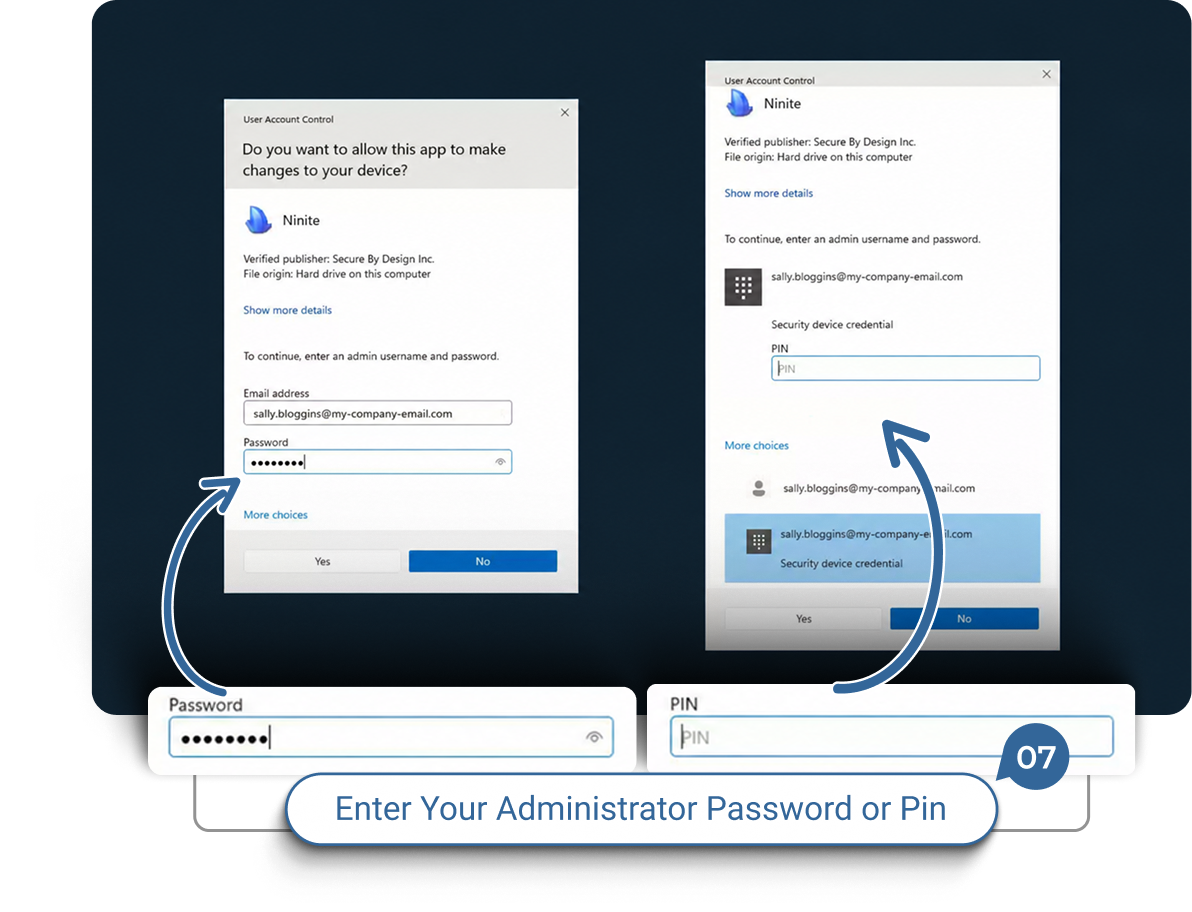
When the Make Me Admin application window appears, click on “Grant Me Administrator Rights.”

Remove Administrator Rights

Remove Administrator Rights
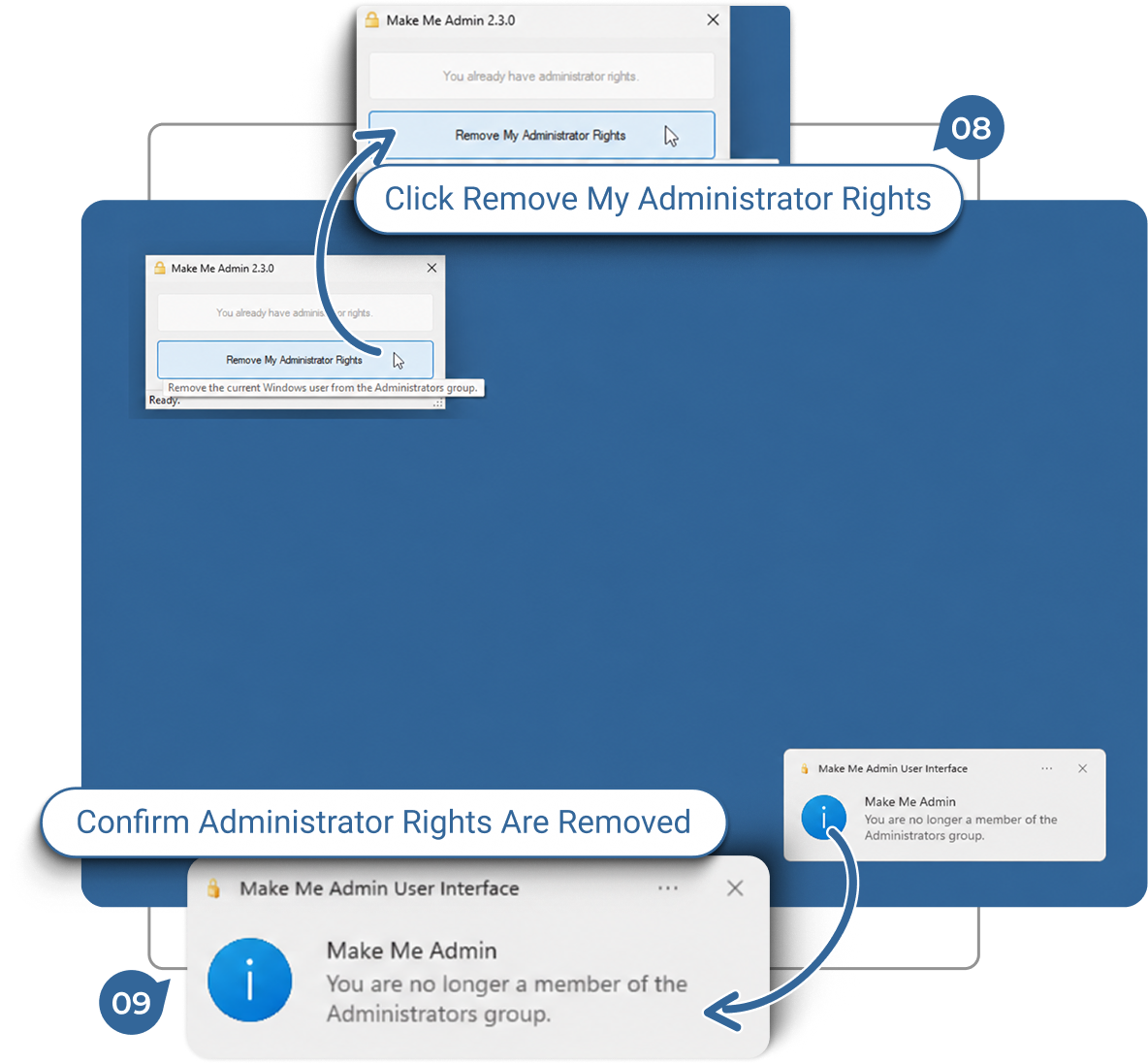
Follow the same steps 1-4 to open Make Me Admin again.
8.
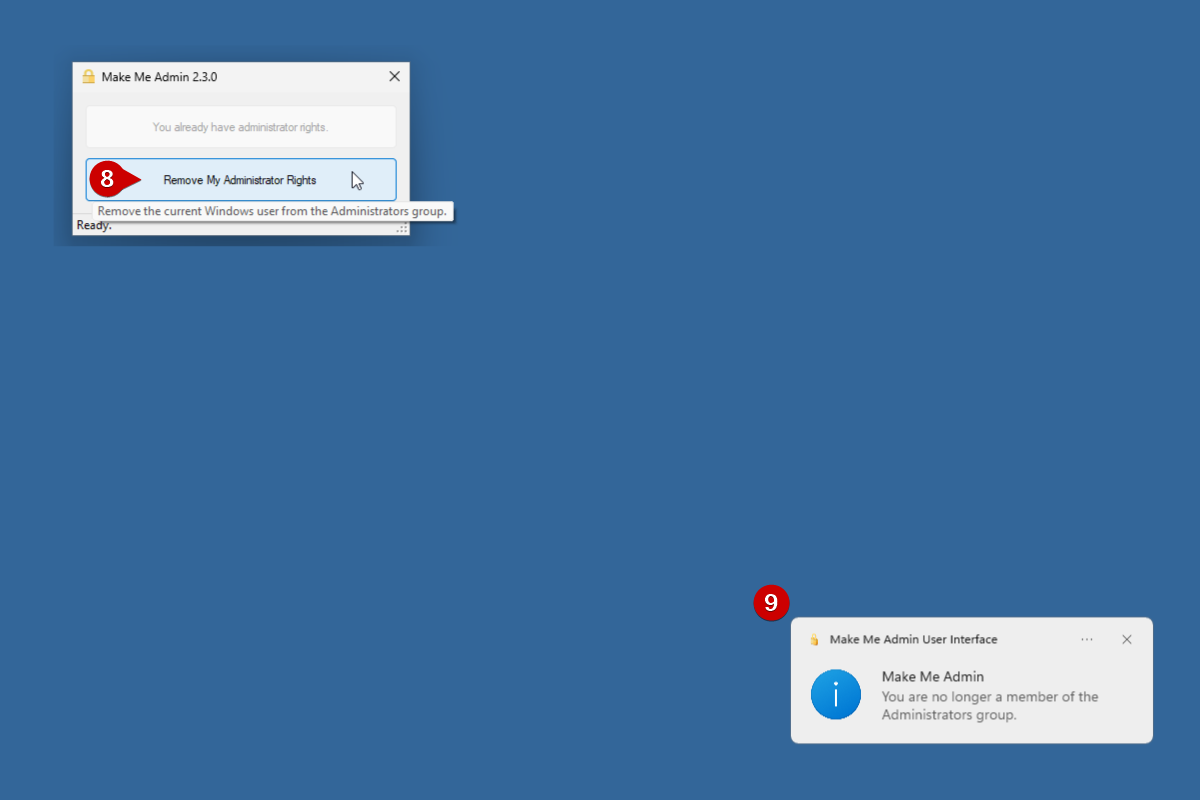
Click on the button labeled “Remove My Administrator Rights”.
9.
A system message will appear in the bottom right-hand corner stating “You are no longer a member of the Administrators group.”
If you do not remove yourself from the Administrators group you will automatically be removed after a period of time.


How to Use Make Me Admin to Perform Administrator Functions

Next Step

2 / 2

1.

Open Make Me Admin

From the Windows start Menu Open the Make Me Admin application
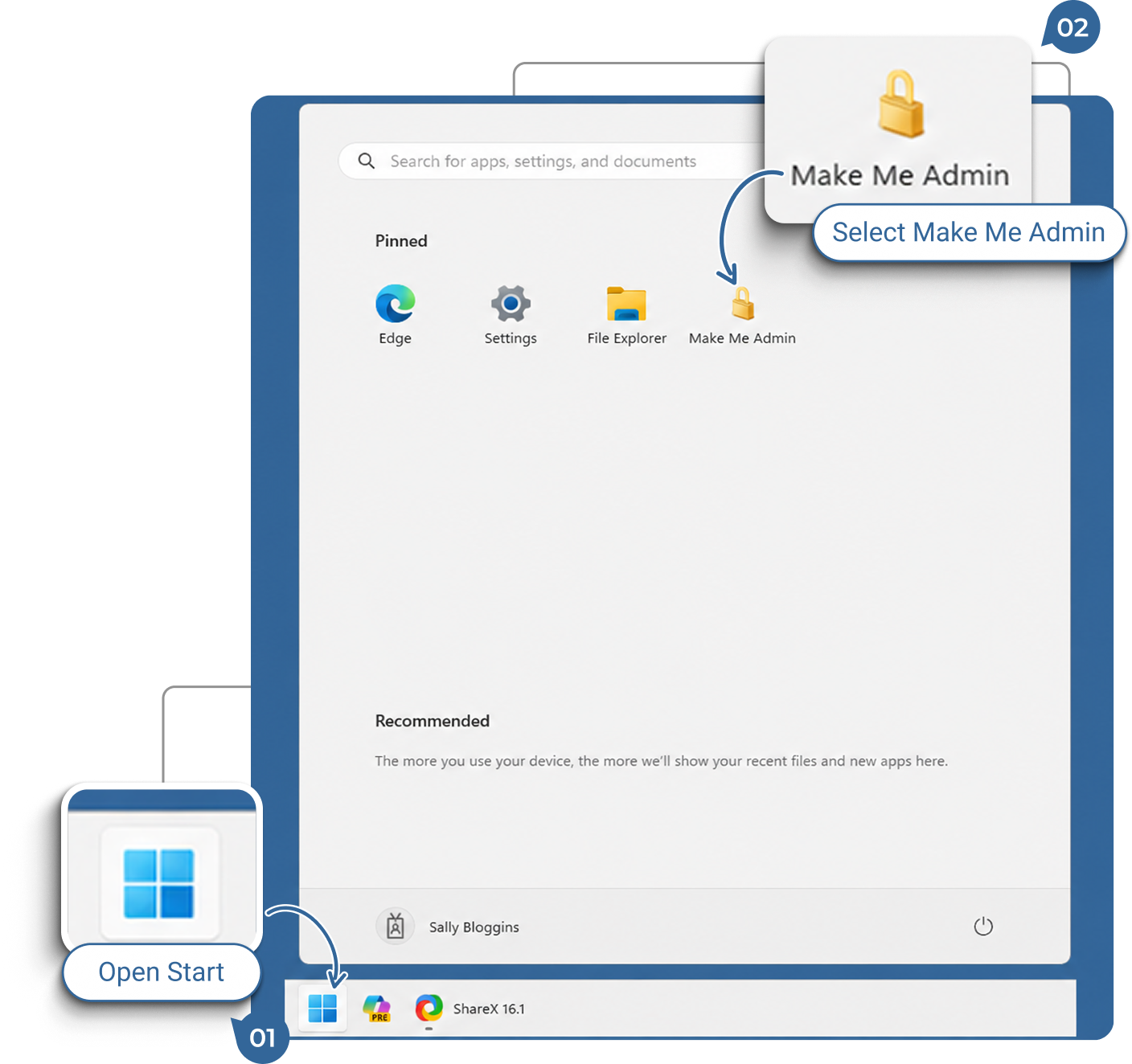
  1. Click on the Windows Start icon or press the Windows logo key on your keyboard.
  2. If you see the Make Me Admin icon pinned in the Start Menu, click on it.
  3. If you do not see the Make Me Admin icon, go to the search field and enter “Make Me Admin”.
  4. Once Windows Search has located the Make Me Admin application, click on it.

2 / 2

Next Step

2.

Grant Administrator Rights

Grant Administrator Rights
  1. When the Make Me Admin application window appears, click on “Grant Me Administrator Rights.”
  2. A system notification will appear in the bottom right corner of your screen, confirming that you have been added to the Administrators group with the message: “You are now a member of the Administrators group.”
Now you may enter your username and password when Windows requests it.

2 / 2

Next Step

3.

User Account Control

User Account Control
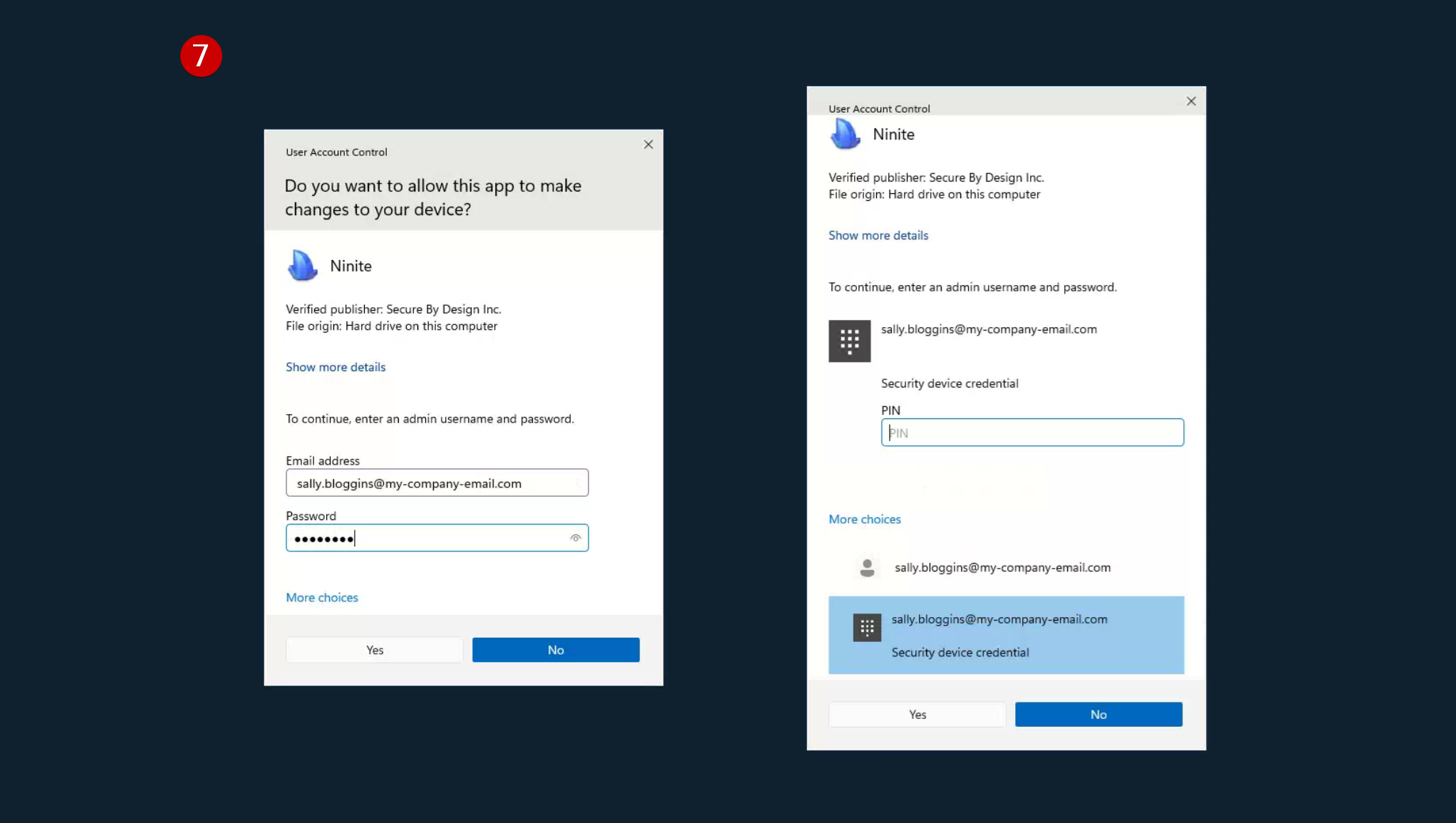
  1. Enter the username and password for your own account, or if you prefer to use a PIN, click on “More choices” and select “Security device credential”.

2 / 2

Next Step

4.

Remove Administrator Rights

Remove Administrator Rights

Follow the same steps 1-4 to open Make Me Admin again.

  1. Click on the button labeled “Remove My Administrator Rights”.
  2. A system message will appear in the bottom right-hand corner stating “You are no longer a member of the Administrators group.”

If you do not remove yourself from the Administrators group you will automatically be removed after a period of time.
2 / 2

Next Step

Next Step

2 / 2

Get Started

Ready to Make Your IT Easier to Manage?

Talk to Cole Systems about your current technology challenges, security concerns, backup needs, or infrastructure goals. We’ll help you understand what needs attention and recommend practical next steps for your business.